
Enable Instagram in SMS Magic
Step 1- Facebook: Login or Sign Up, Businesses must have a Facebook account
If the Business (does not have a Facebook account) they need to create one by clicking on the link (Facebook)
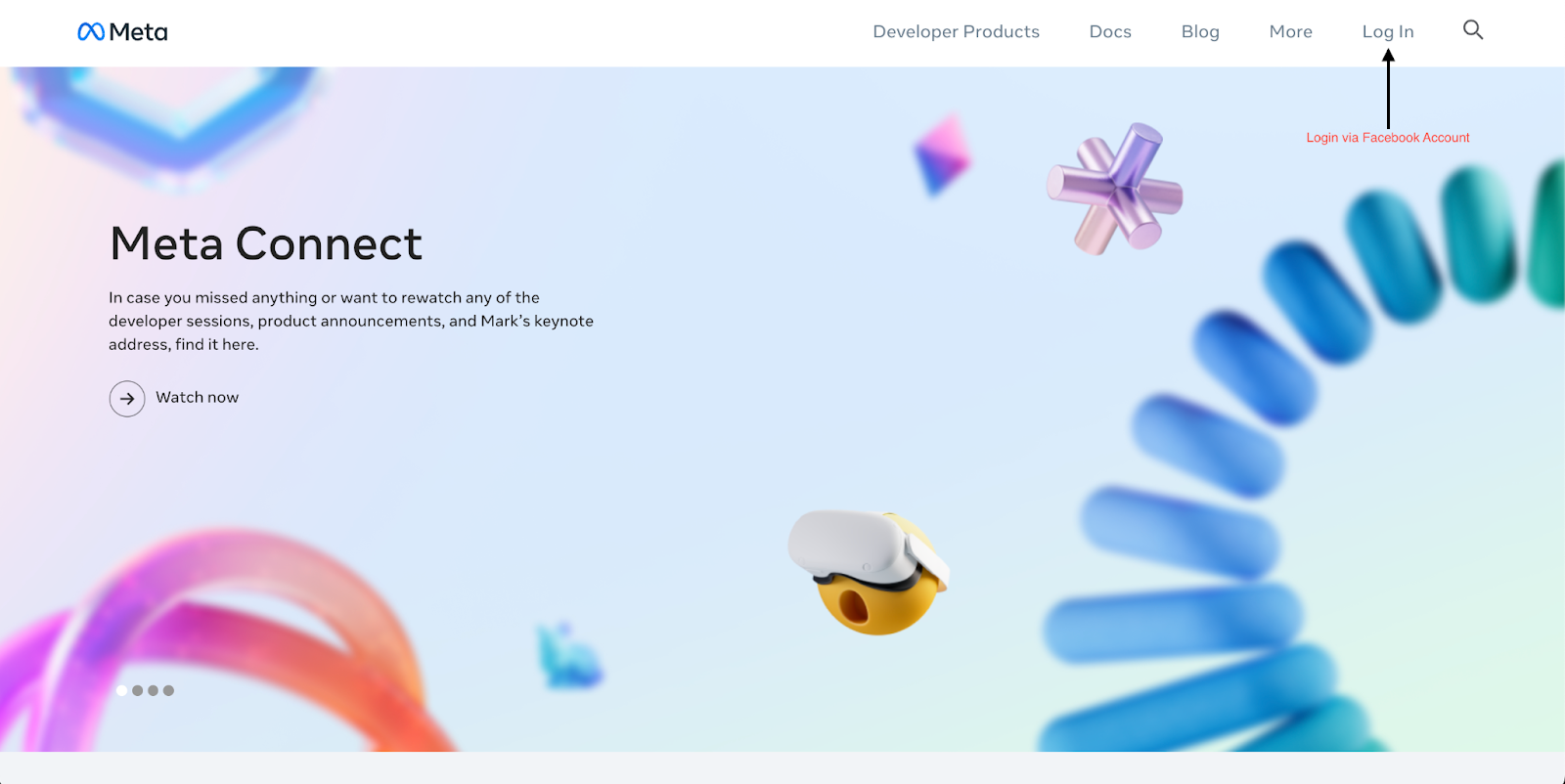
Step 2- Login: Developers AccountBusinesses have to log in using the developer's account. Click on the link and you will be redirected to the developer account directly (Meta for Developers)
Step 3- Creation of My Apps into Facebook through Developers After login, click on “My Apps”
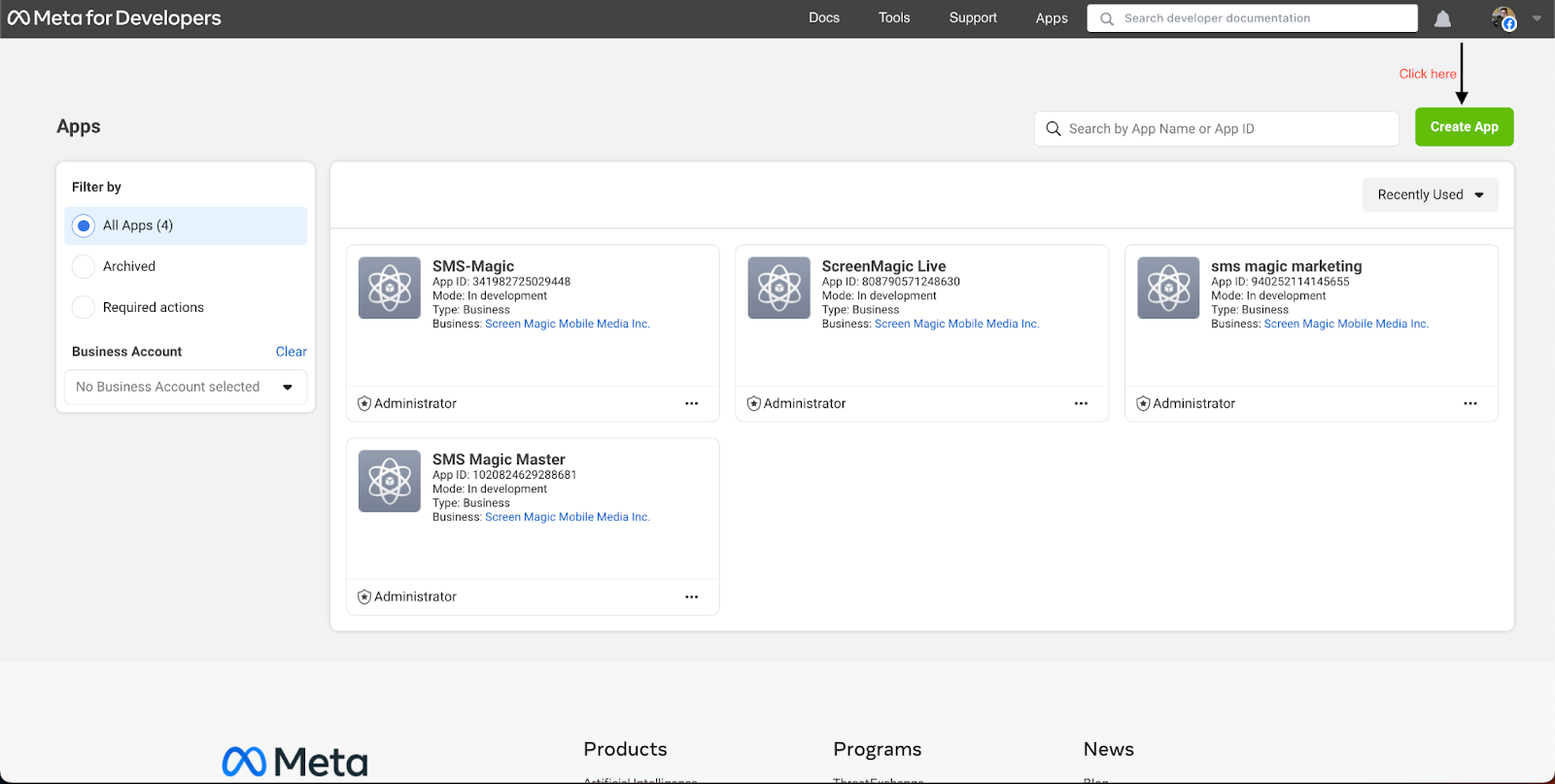
Step 4- Create New App
Create App
Click on “Create New App” to create a new app for the business
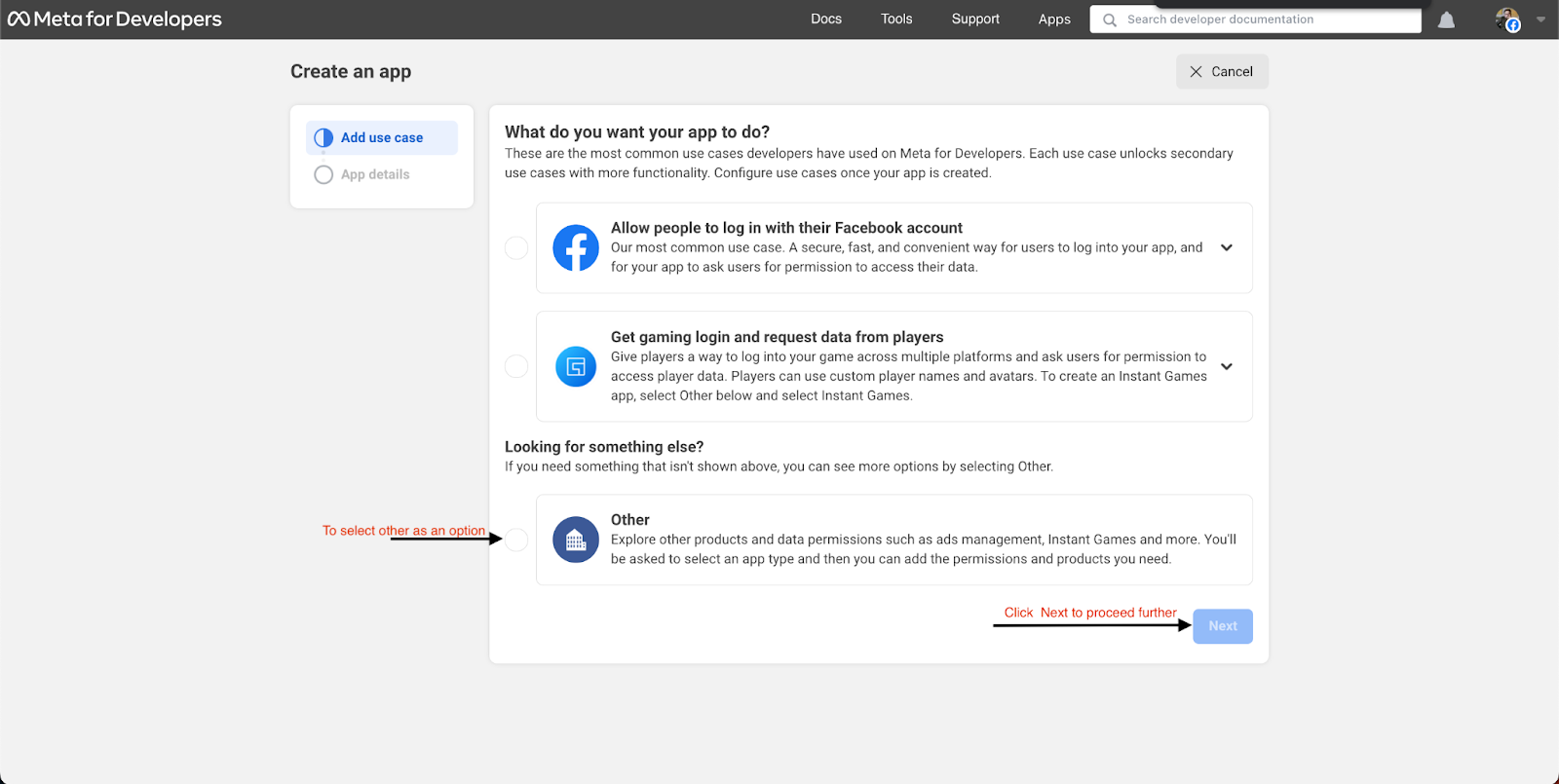
Add Use case
Add the use case and click “Next”
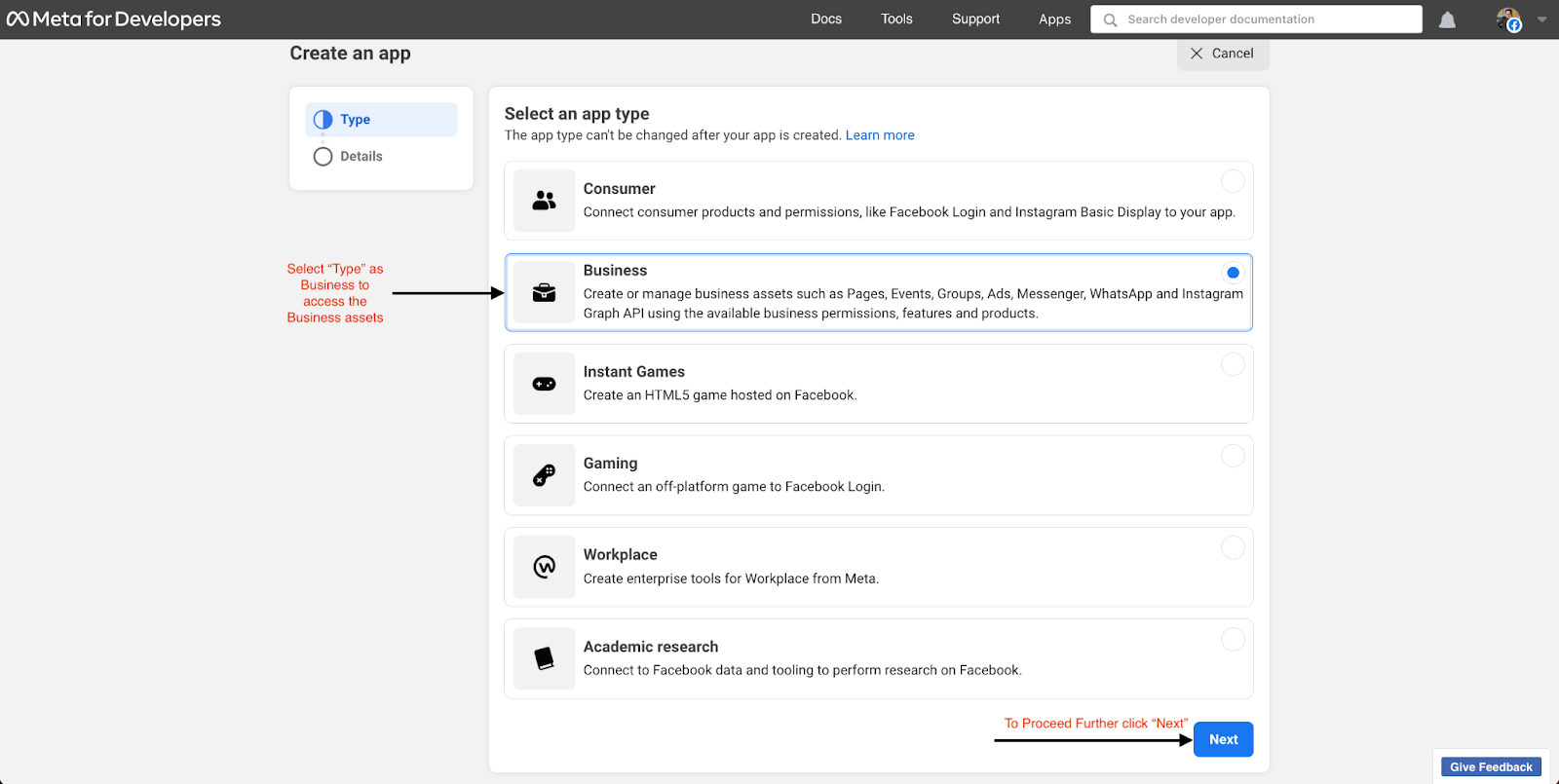
Add Type
As the next step, select the app type from the available options
Add Business Details
After selecting the app type, enter business details such as:
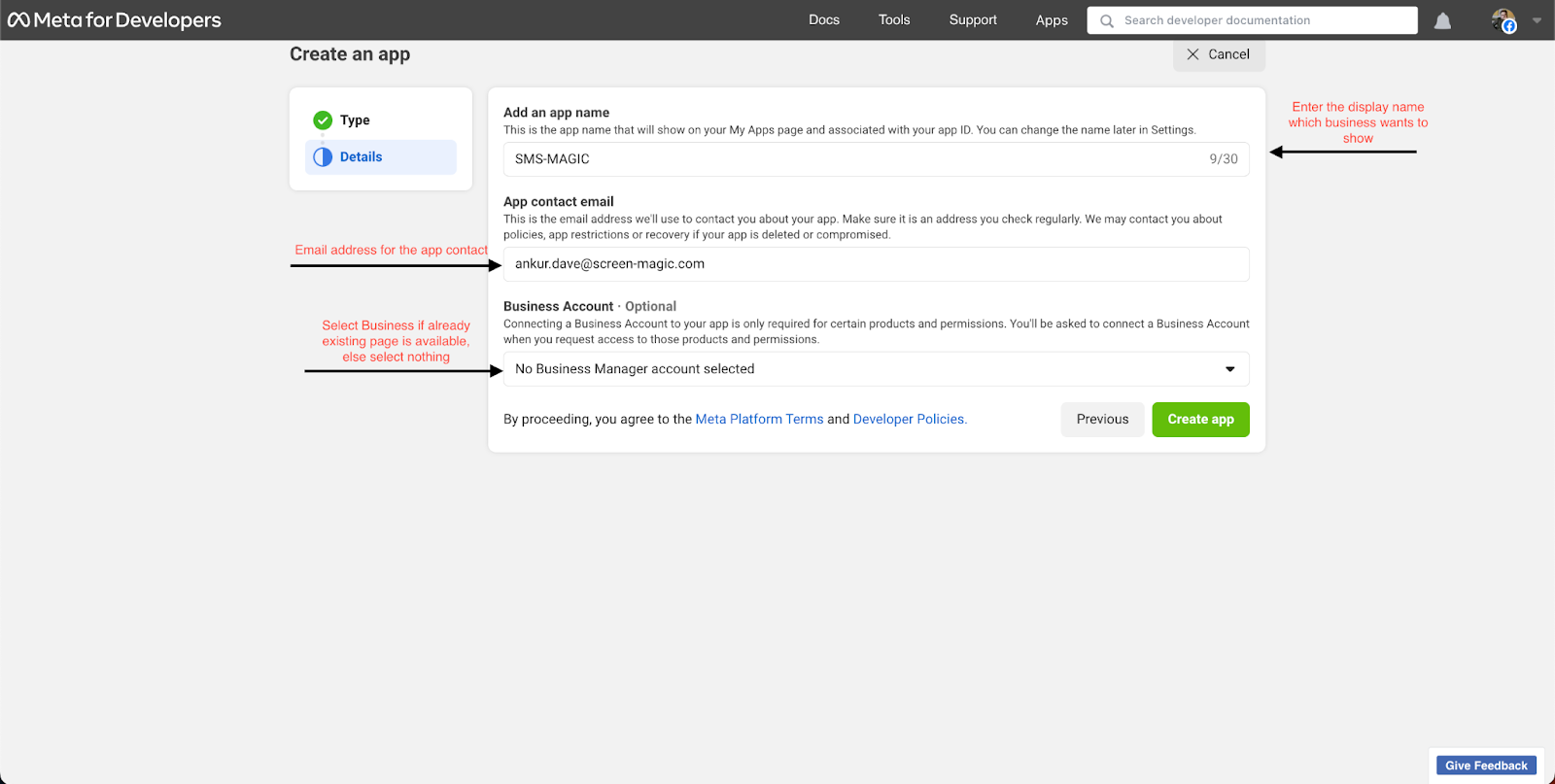
Display Name
App Contact email
Business Account is optional
“Click “Create App” to create the app into your Facebook business page”
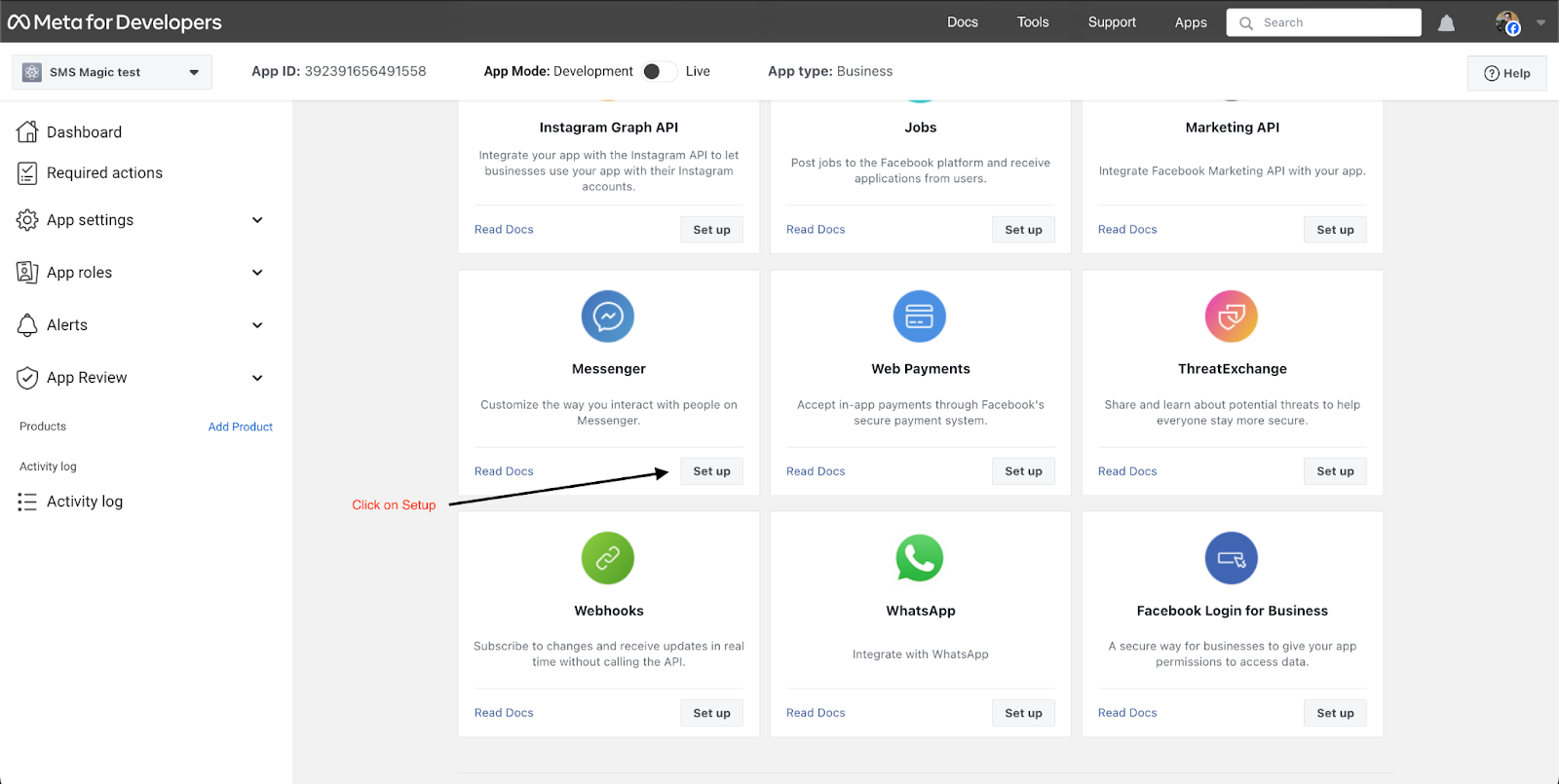
Search for Messenger
Click on “Setup” button to configure Messenger
Instagram Messaging
After clicking on Setup, the messenger API setup will open, where you need to select “Instagram Messaging”
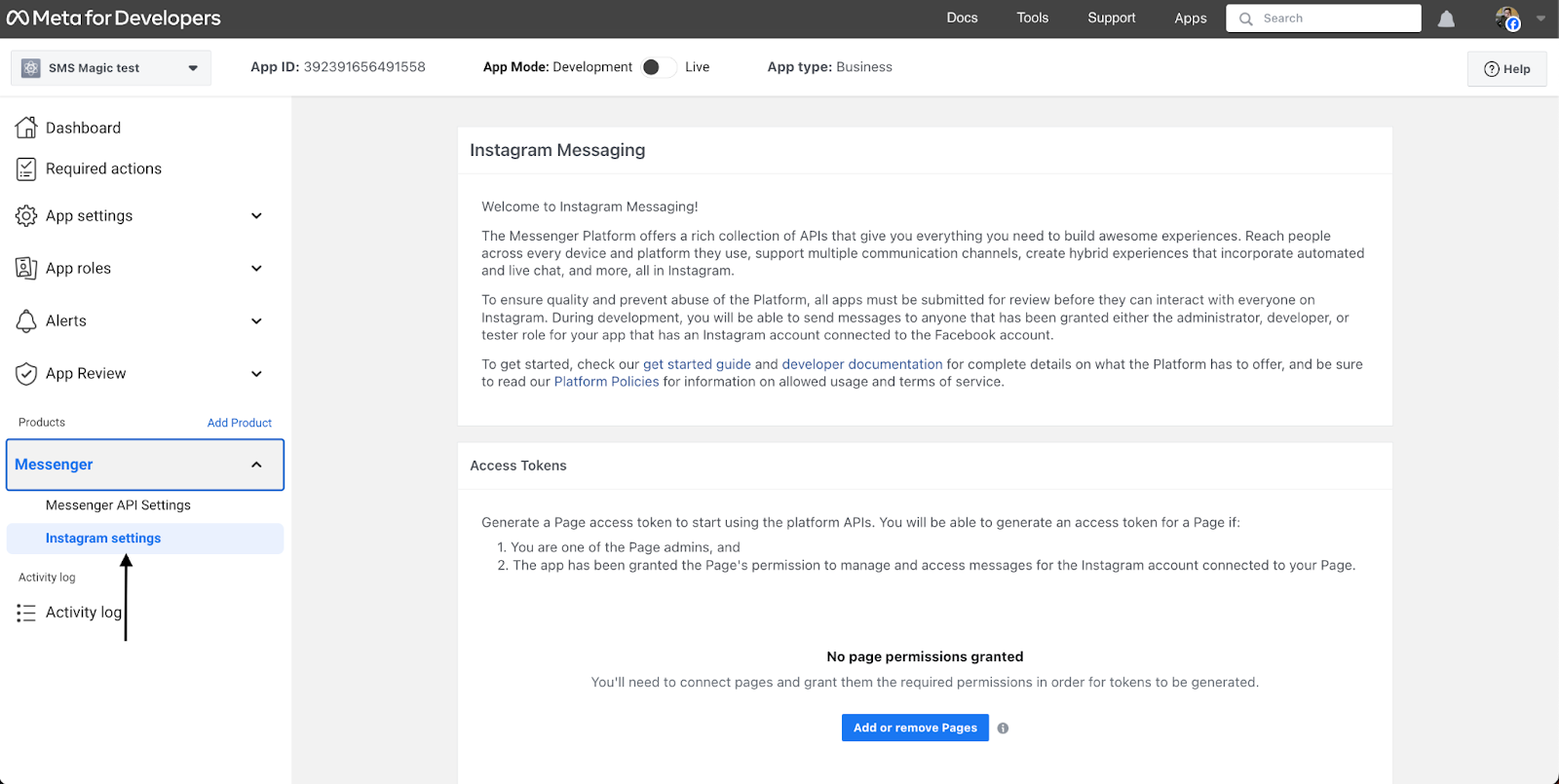
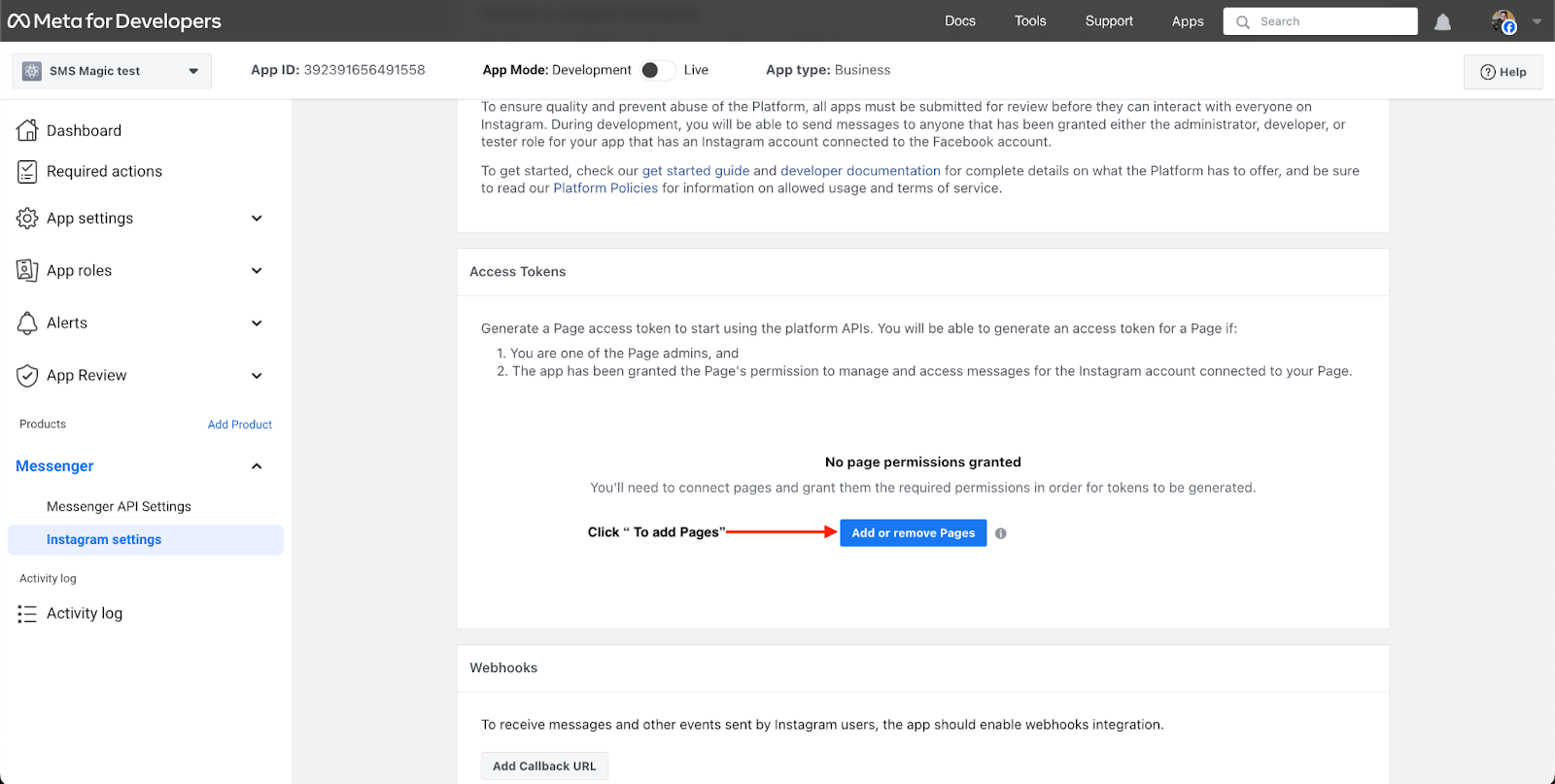
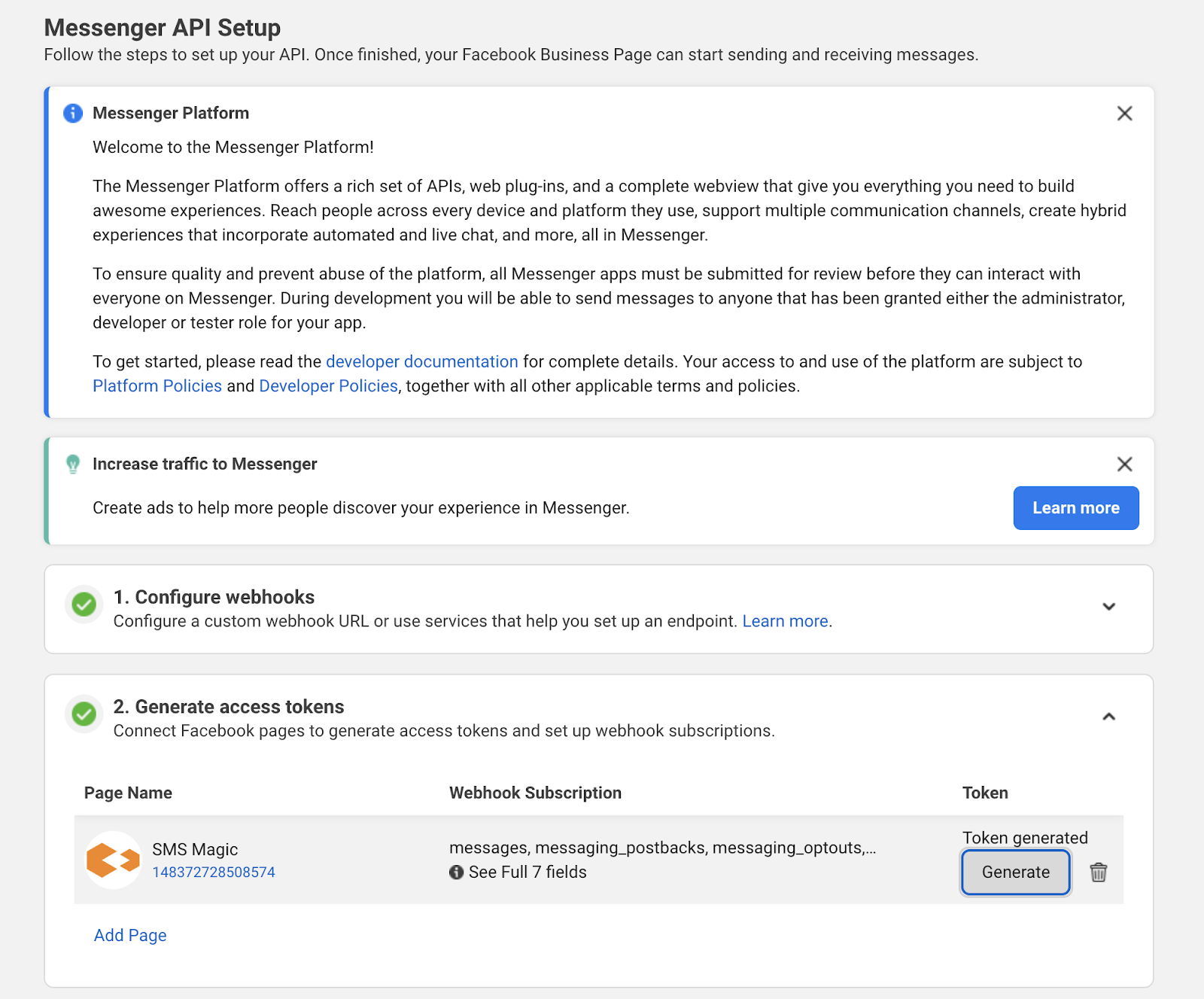
Access Token
The business has to create the access token by adding the pages
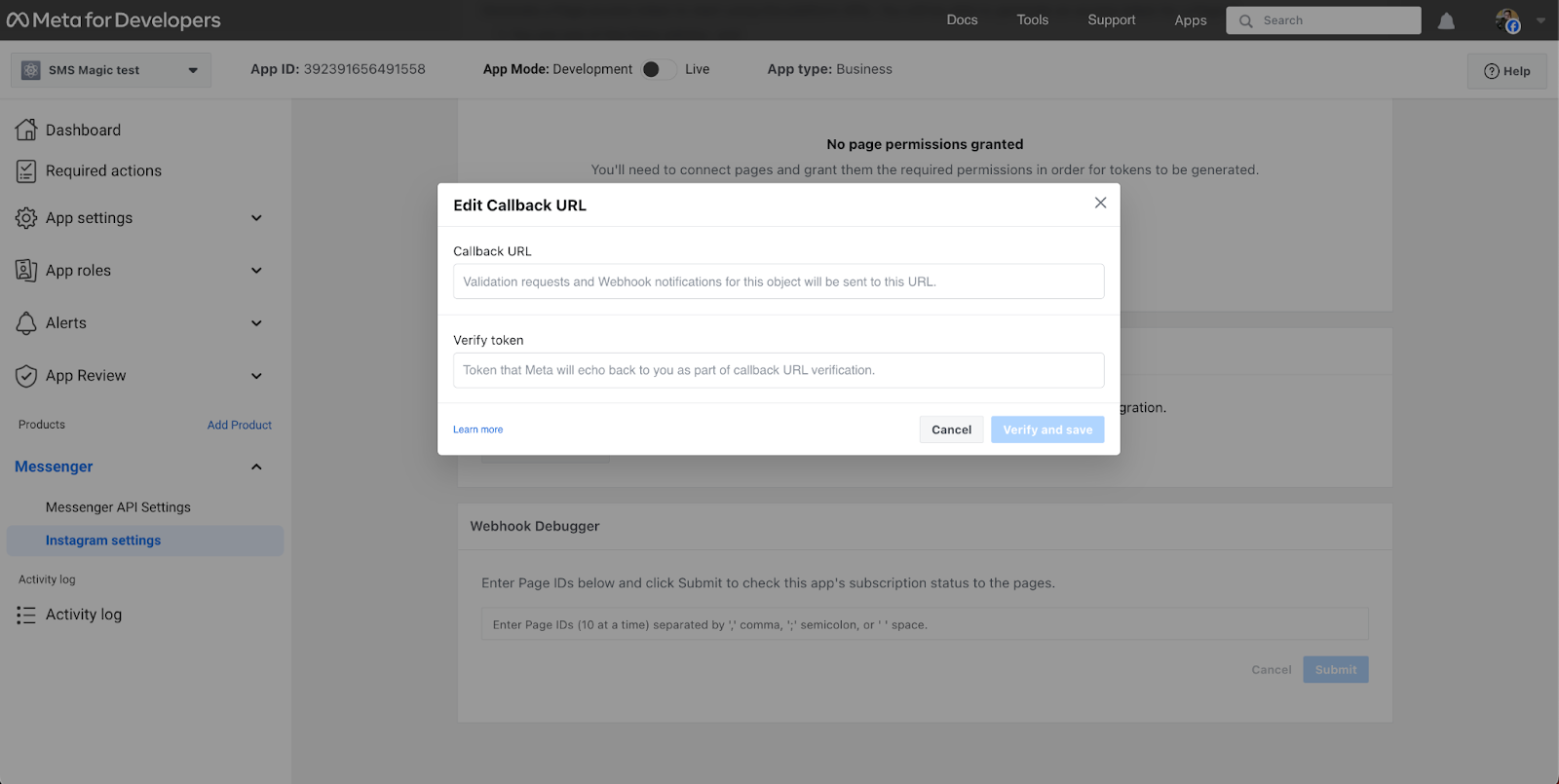
Add the Callback
URL: https://api.sms-magic.com/messages/incoming/instagram/magicinstagram
Verified Token: betasecretchecksmsmagicinstagram
Generate Token
Once the Page or App has been added then the business can generate a token
Once the token has been generated and the callback has been set, the business can use Instagram Messaging as a platform
Share the token, SMS-Magic account ID with AccountManager / CSM so we can enable the channel.
