How to Integrate a Conversive Button with the Website?
Follow the steps below to embed Conversive buttons:
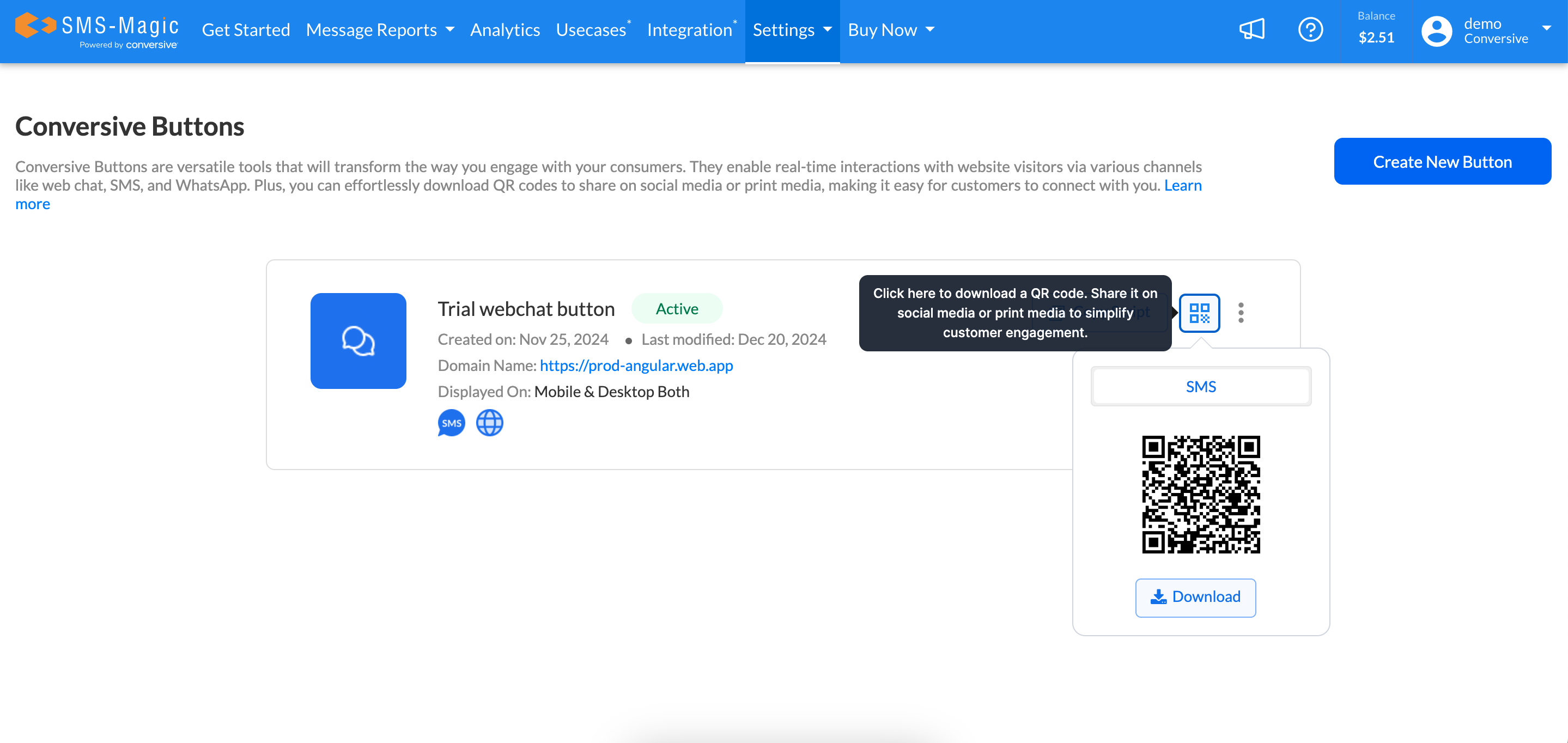
All the buttons that you create will appear on the home page, as shown below:

You can edit, deactivate/activate the Conversive buttons that you create. Once the button configuration details are edited, the changes will reflect on the website within a minute or so. Also, once you deactivate a button, it will not be visible on the website.

Note: The changes you make will be reflected within the same script, so there is no need to replace the script. Once the Conversive button is embedded, users will be able to see it on their Mobile, Desktop, or Desktop and Mobile.


Once visitors select the channel, let's say SMS/WhatsApp, they will get an option to send a message or scan the QR code to begin the conversation on the selected channel, as shown in the image below:

If they select Web Chat, it will first open a web form where visitors would have to fill basic details to start the conversation. Once the basic information is submitted, the conversation will open, and the visitor will receive a welcome message from the business. It would either be connected to an automated chat flow or with a direct human agent.


Alternatively, the Conversive button also provides you with an option to download a QR code image for the same configuration so that you can download and publish these QR codes in your social media posts or physical or digital advertisements to invite consumer conversations.