
What is Conversation?
Conversation with a recipient is a thread of message exchange between the user and the recipient. Conversation can be viewed by selecting one contact from the list in the inbox. The conversation gives a holistic view of all of the interactions with the user across your business. With this, the users have the context and history they need for a better conversation.

All the messages sent or received on the mobile application are synced to your Zoho CRM and vice versa.
User can check the message delivery status in the thread as per the following indicators:
Single tick: message submitted
Double tick: message delivered
Error icon: message failed
Initiate New Conversation
You can initiate a new conversation using an existing Zoho CRM customer record or type in a Number directly without adding the same in Zoho CRM.
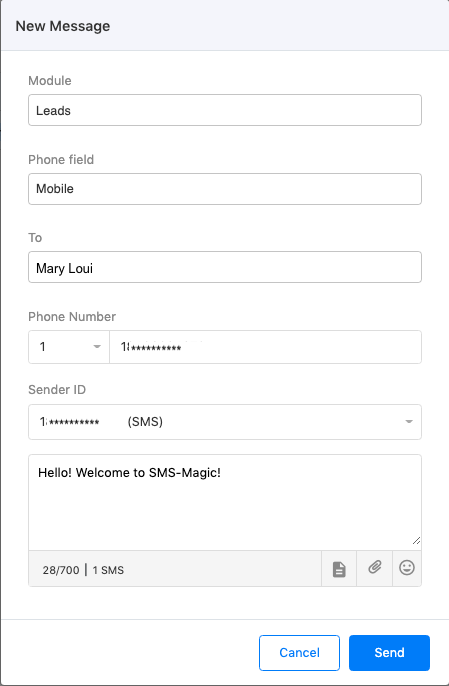
To initiate a message with a customer, whose record is available in Zoho CRM, follow the below steps –
Select Zoho CRM Module to which the customer record belongs
Select the Phone field, the field which has the phone number/mobile number of the customer, in the selected Module
Type in your name in the Full Name field. (Customer suggestions are displayed while typing a name)
Select the Country Code (ISD Code) from the dropdown and type in the Number. For example, Select 1 for USA and type in 85********. (This is auto-populated if a Customer record is selected from existing Zoho CRM records)
Select Sender ID
Type in a Message or use pre-defined Templates to converse. You can search from the available Conversation type templates for the selected Channel.
You can add Media files and Emoticons to your message
Click on the ’Send’ button
If you are initiating a conversation with a customer via WhatsApp channel, you can send a registered WhatsApp template. Make sure that you have already uploaded the consent of the customer in Consent Management.
If you send a custom message or select a non-registered WhatsApp template, you can get an error in case the Customer Care Window of 24hours with that customer is closed.

