
You can see all your sent or received messages in Zoho under SMS History tab,
A clean tabular representation for all your messages. Track your incoming and outgoing messages in the SMS History module of SMS-Magic Interact Extension with ease.

In SMS History Module,
Incoming/Outgoing messages can be identified by the entry in the ‘Direction’ column.
If the entry is IN, this message is an incoming message. The SMS History Name for an incoming message will also have IN prefixed before the SMS History Name.
If the entry is OUT, this message is an outgoing message. The SMS History Name for an outgoing message will also have OUT prefixed before the SMS History Name.
SMS/MMS/WhatsApp messages can be identified by the entry in the ‘Type’ column
If the entry is SMS, the message sent/received is an SMS
If the entry is MMS, the message sent/received is an MMS
If the entry is WhatsApp, the message sent/received is a WhatsApp message.
Media attachments can be seen in the Attachments section of the SMS History record. Click on the SMS History record with type MMS/WhatsApp, scroll down to Attachments section, to view the attached media file.
Track the Sent Status and Delivery Status of your Outgoing messages
Module Lookup on SMS History
Incoming and Outgoing messages in SMS History get associated with a relevant Lead/Contact record for which the mobile number of the recipient matches.
Notes:
If multiple Lead or Contact records have the same Mobile Number, there can be discrepancies in the association of Lead/Contact.
To associate SMS History records with a relevant Custom Module record, you can configure Custom Module Lookup on SMS History. Follow the steps below to configure Lookup for your required Custom Modules -
Create Lookup Field in SMS History Module layout
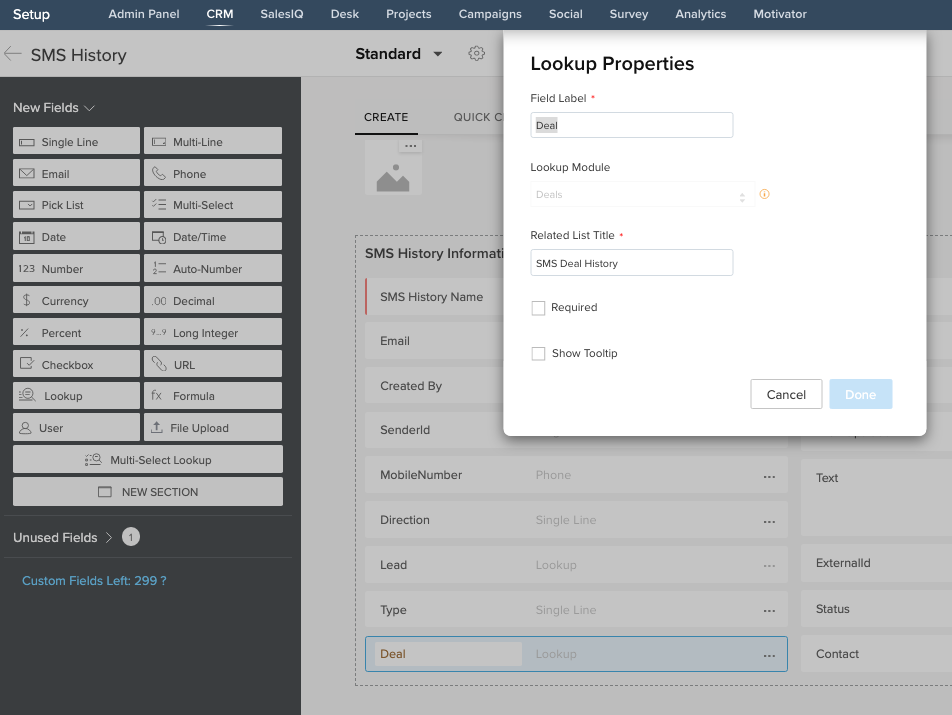
Create a Lookup field in SMS History for the custom module you wish to associate relevant SMS History records with. For the Deals module, we will create a lookup field - “Deal” in the standard layout of the SMS History module.
Click on Setup > Customization > Modules and Fields
Click on SMS History
On Layouts tab, click on Standard
Drag and Drop LookUp from the Left Panel to the SMS History Information Layout
Enter Field Label as ‘Deal’
Select Lookup Module as ‘Deals’ from dropdown
Enter ‘SMS Deal History’ as the Related List Title
Click on the Done button
Notes:
Make sure the API name for the lookup field is the same as lookup field name. To check the API Name of the lookup field, Click on Setup > Developer Space > APIs > API Names tab > SMS History.
Create Workflow that will perform the Lookup for the Custom Module.
Follow the below steps to create a Workflow Automation -
Click on Setup > Automation > Workflow Rules
Click on + Create Rule
Select the Module SMS History.
Enter a Rule Name and Description for the Custom Module for which you are creating the Lookup Workflow
Click on the Next button

Create a Workflow rule as shown in screenshot below -
WHEN - On a Record Action > Select Create
CONDITION - All SMS History
ACTION - Function > Write your own

Continue Creating a function with the steps below -
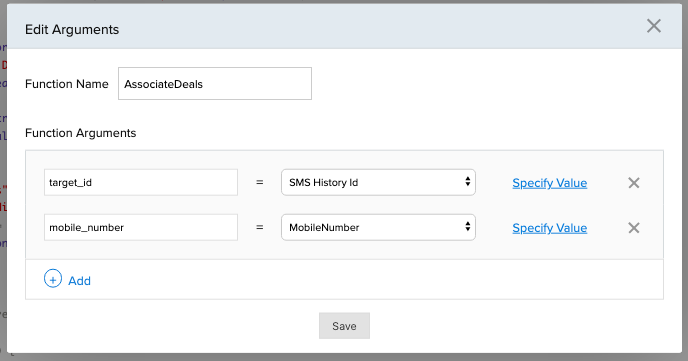
Enter Function Name - AssociateDeals i.e Associate<Custom_Module_Name>
Enter Display Name - Associate Deals i.e Associate <Custom_Module_Name>
Enter a Description(optional)
Click on the Next button
Copy and paste the below code in the Text Area
|
Click on Edit Arguments above the text area
Add the Function Arguments as seen in screenshot below -
Click on the Save button
Click on the Save button on the Function Editor
Click on the Save button to save the Workflow. The Workflow will be active by default.
For the Outgoing and Incoming messages, from/to this custom module, the Lookup workflow will associate a relevant Module record to the SMS History record.
Notes:
Mobile number is SMS History record should exactly match with mobile field value in Custom Module (e.g., Deal).
Although this code takes care of country code, yet Mobile numbers in custom modules should not be formatted.
