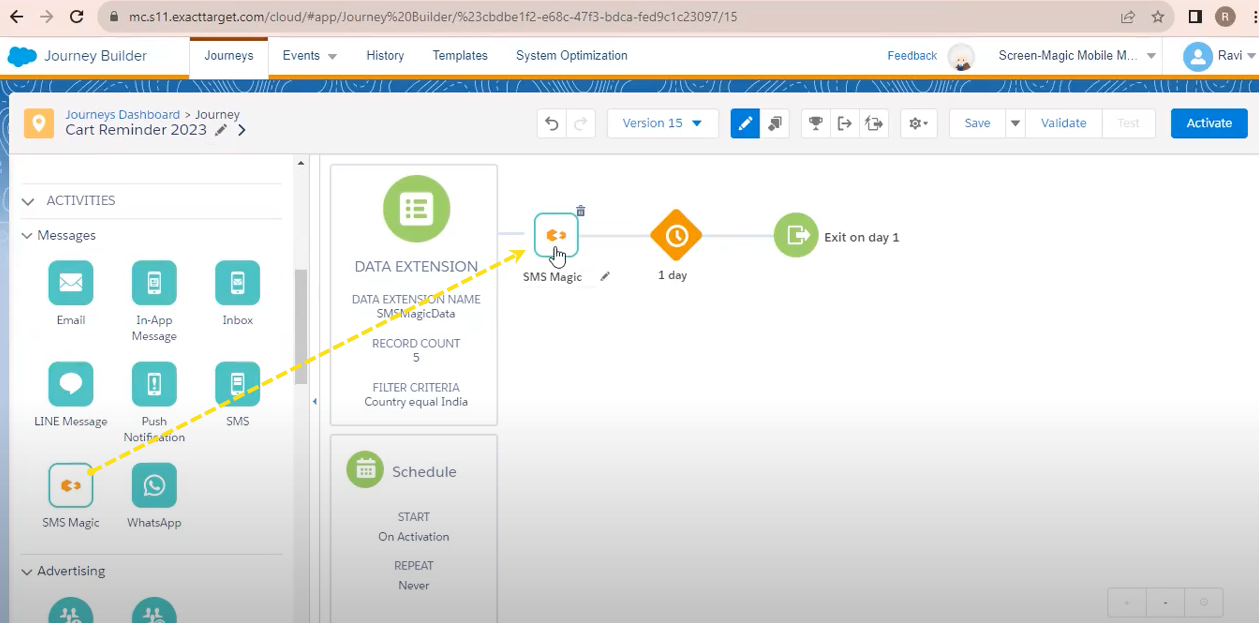
Messaging sending can be automated from SFMC Journey builder. Follow below steps to configure journey builder .
In Salesforce Marketing Cloud, navigate to Journey Builder.
Select an existing journey or click Create New Journey.
Drag the SMS Magic activity to the desired location on your journey canvas.
Configure your message by selecting the sender ID and message channel (SMS or WhatsApp), and by choosing or creating a message
There are two ways to choose senderIds. One is static senderId, other is dynamic senderId.
Dynamic senderId configuration is useful when you want to use different senderIds based on the region or type of consumer.
.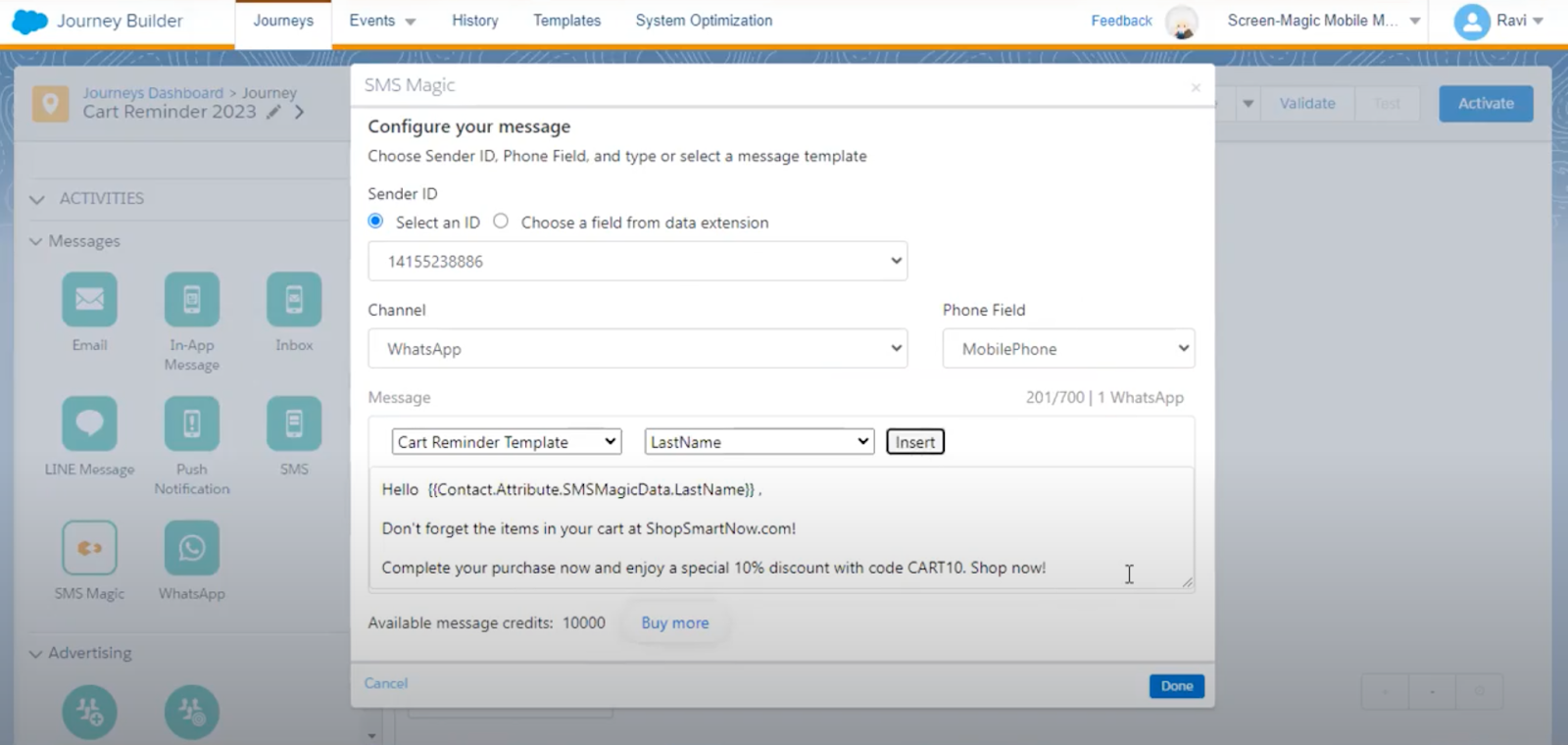
Message templates list will be loaded from Sms-magic platform.
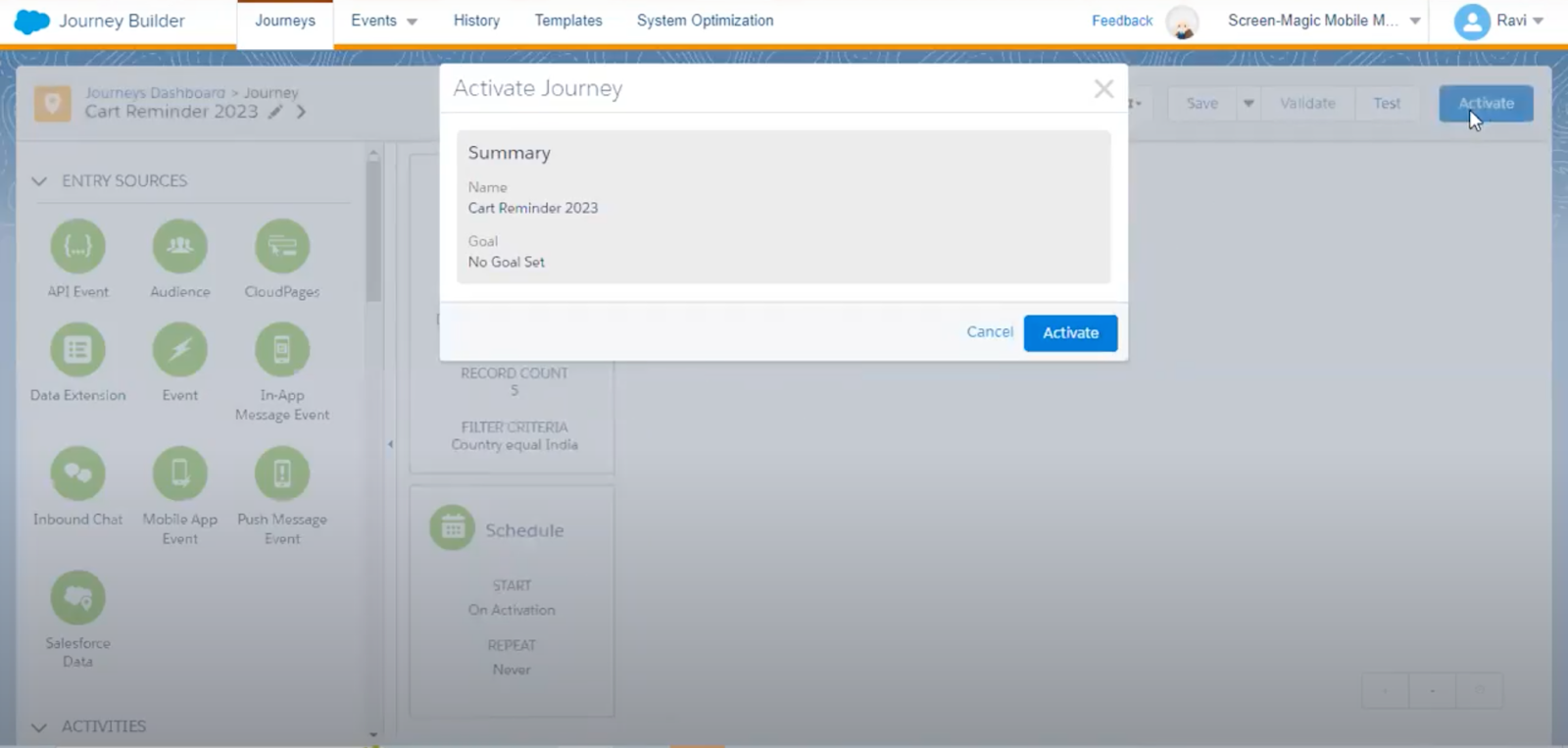
Once the message is set up, click Activate to start the journey.
Message history in SFMC
The message sent will be synced back to SFMC under the data extension and inside the SMS-magic message history where your messages are sent from the marketing cloud.
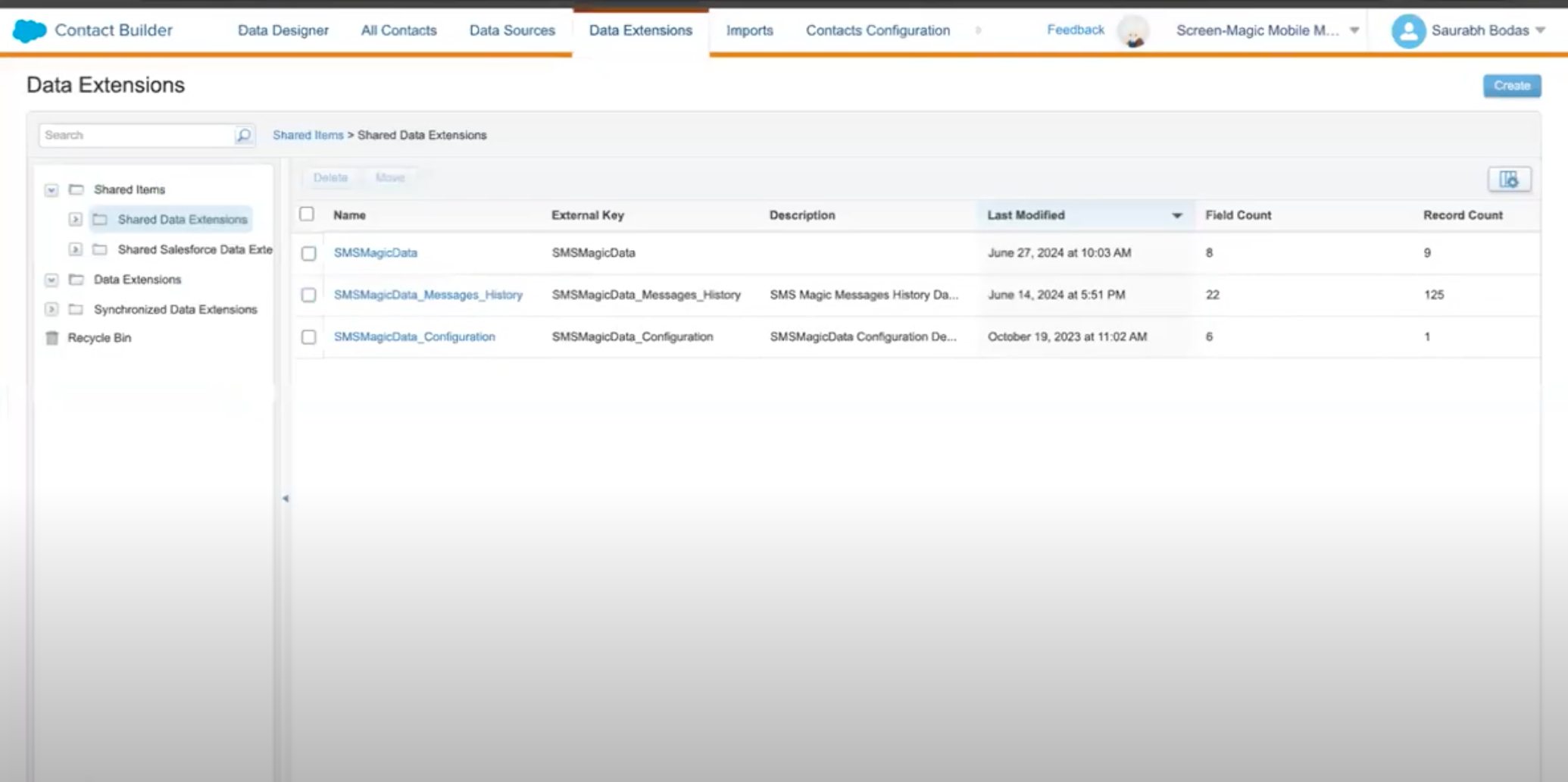
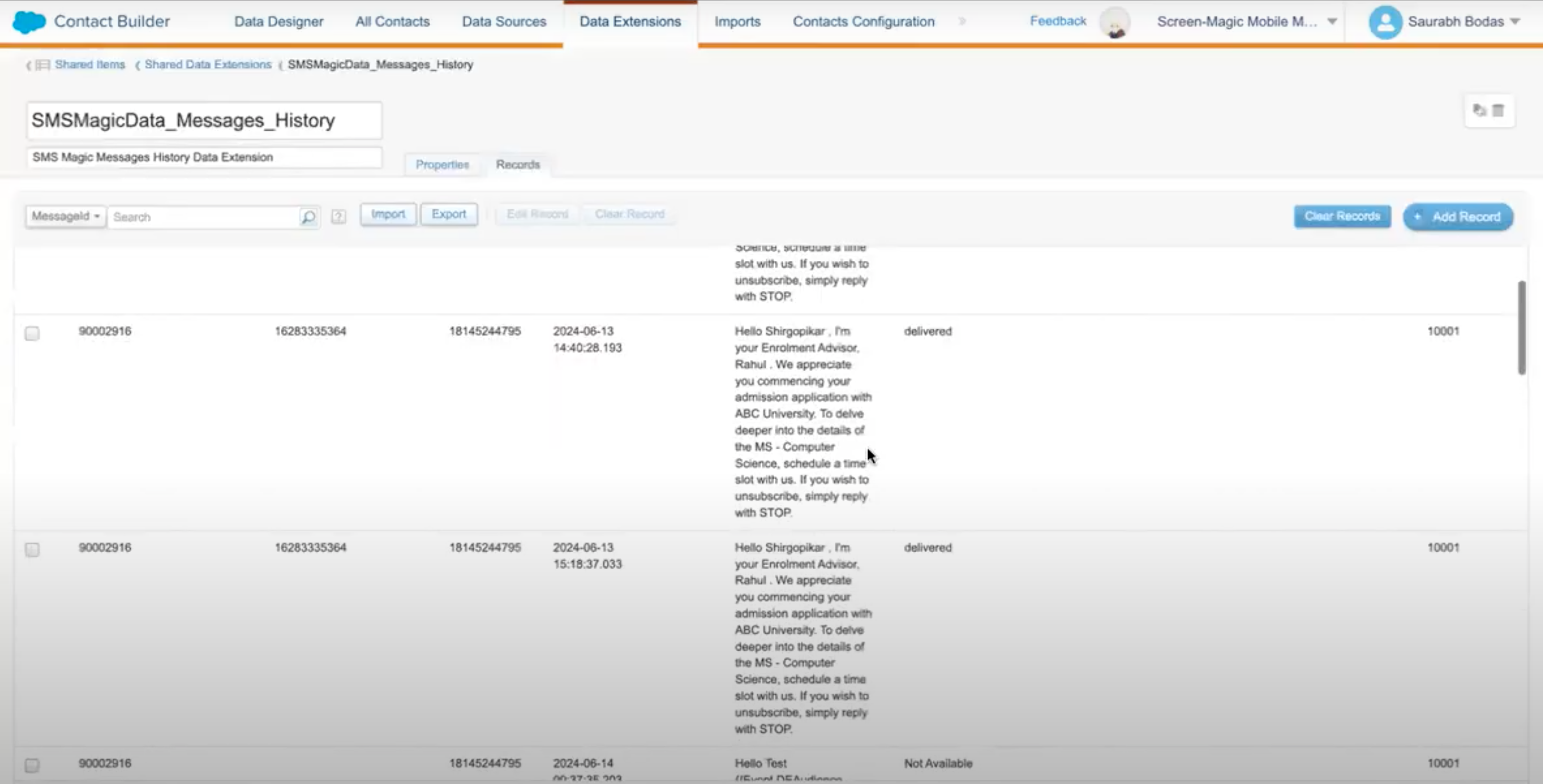
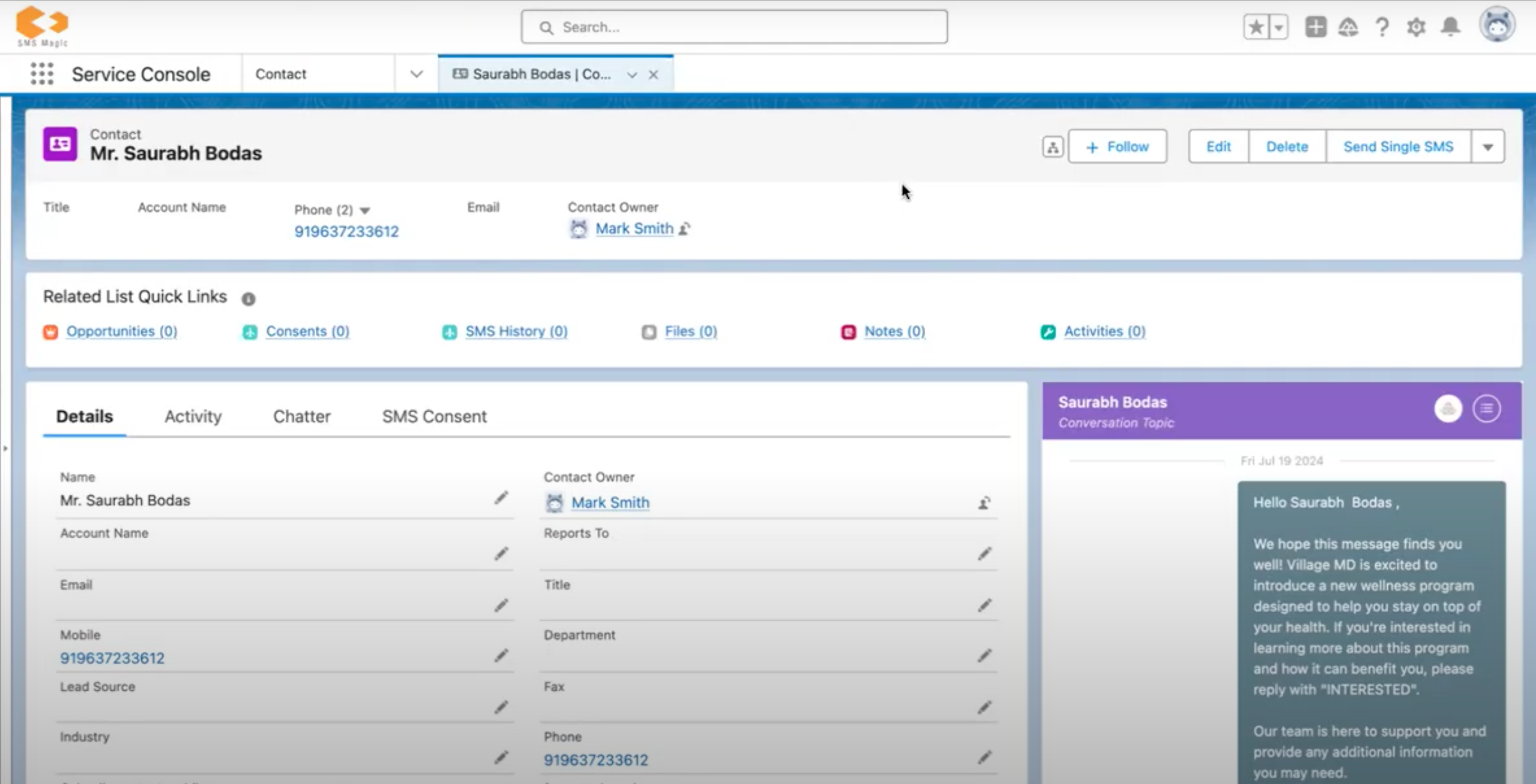
If you're using Salesforce to have two-way conversations with your customers, messages sent from Marketing Cloud will also be visible at a record level in Salesforce. This will give your sales team a reference and context of the incoming messages sent by your customer.
This integration between Salesforce Marketing Cloud, SMS-Magic Extraction, and the Salesforce SMS-Magic Converse app ensures a seamless sync of your messages, linking them to the record used to send the message.