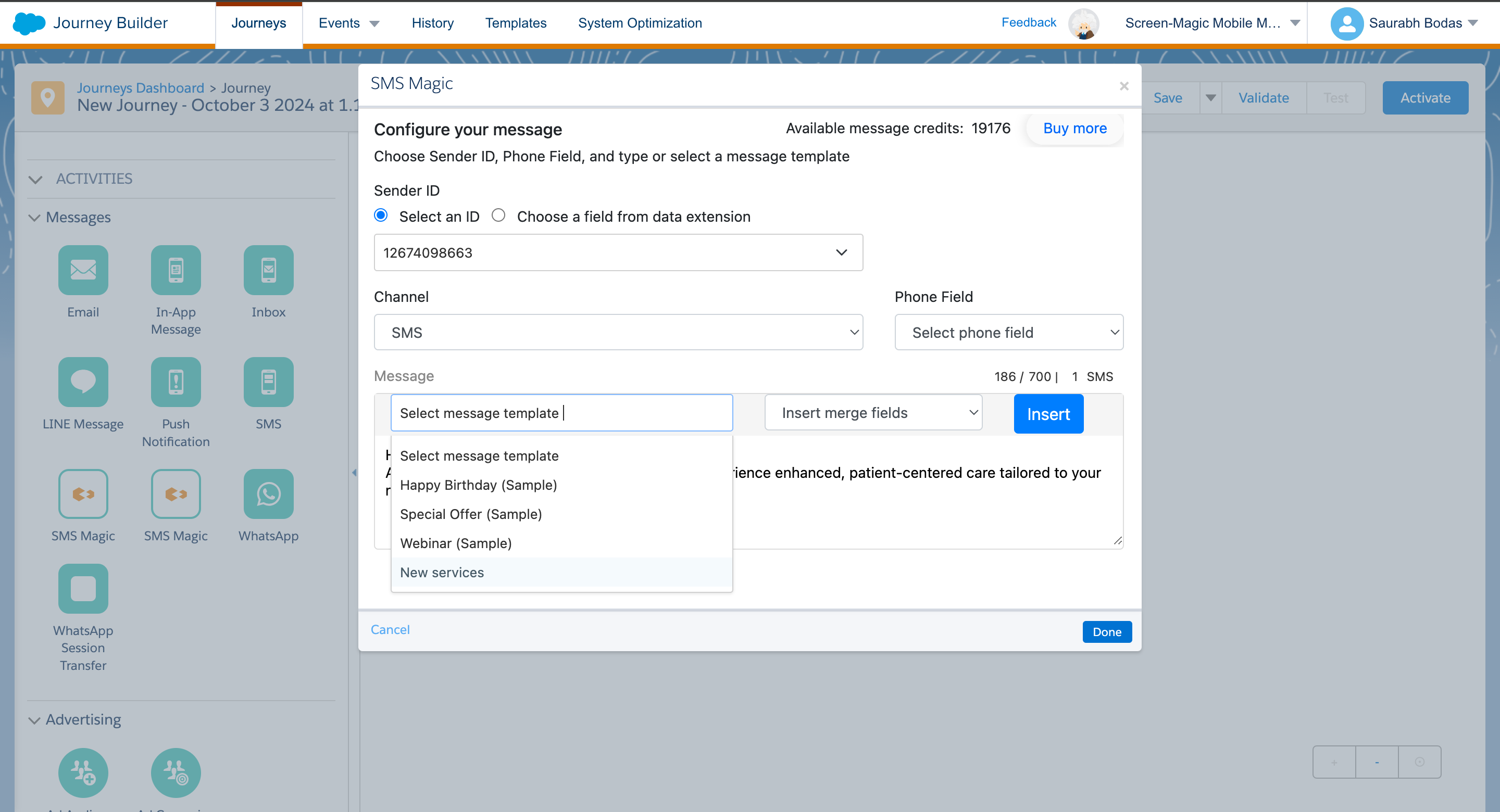
Step 1: Go to SMS-Magic Portal to create templates
Go to your SMS-Magic Portal
Click on Message Templates, which is under the Campaigns Tab.
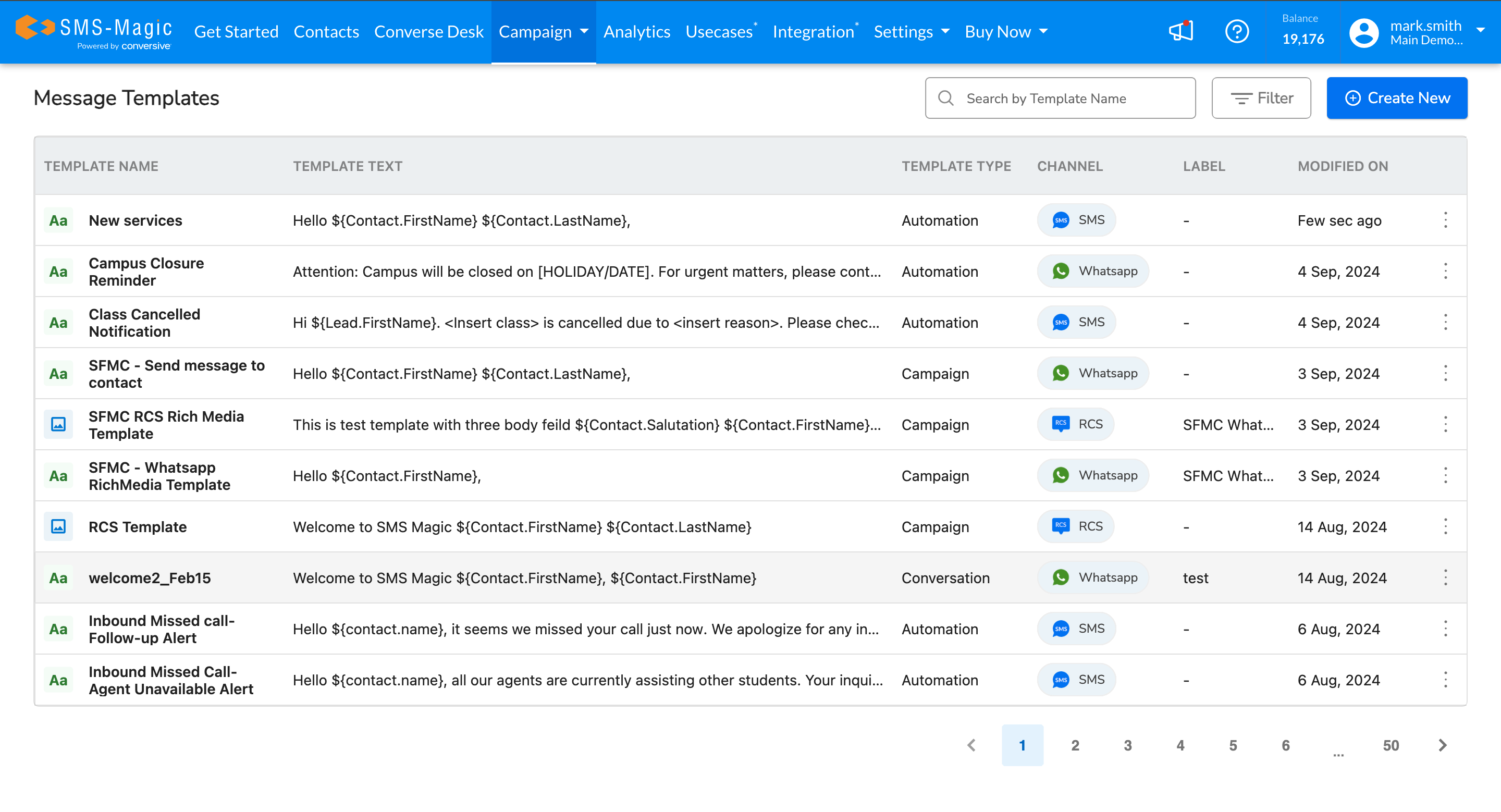
Step 2: Create Template
Click on Create new
Under the creation of a Message template
Provide a name for easy understanding
Template type as Campaign
Integration as Salesforce Marketing Cloud
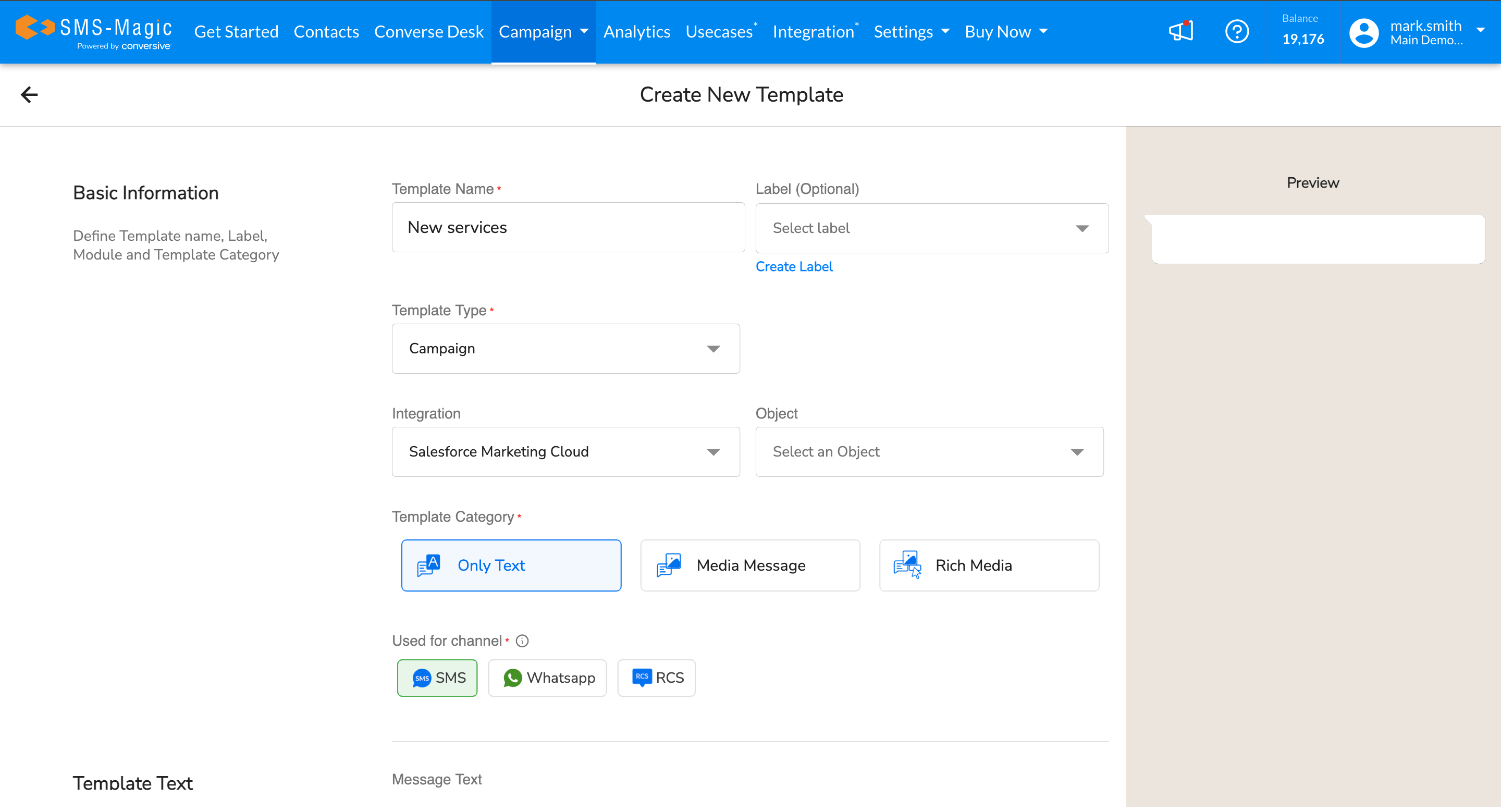
Object: The object refers to the data source from which you will send the campaign.

For example, for sending your campaign, the salesforce is the data source, then select the data source as salesforce with the object you will use for sending this message.
Select the object module you are going to use to send the messages.
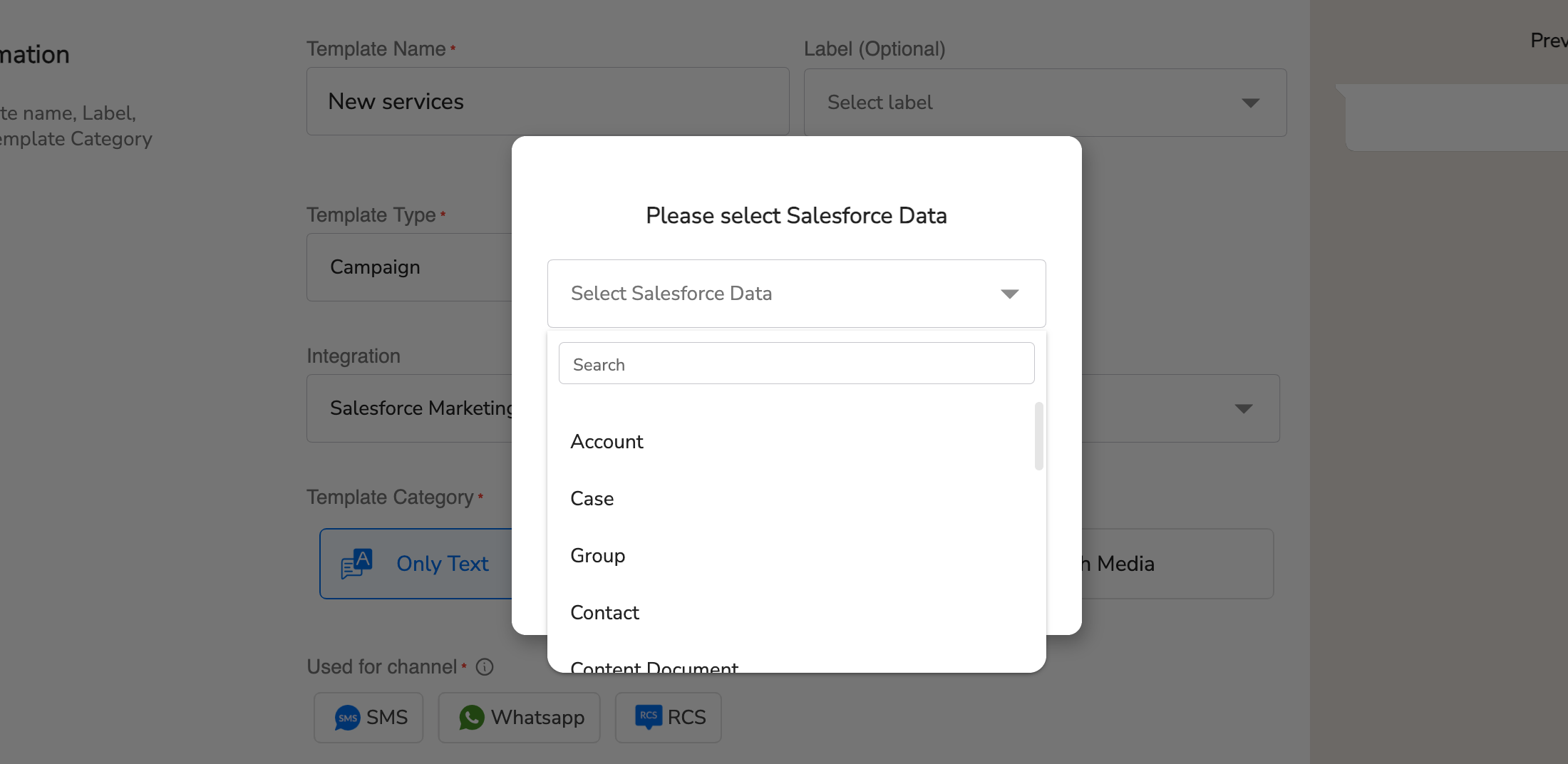
If the Data Source is a Data Extension
Select a Data extension that you have created in your Salesfroce marketing cloud.
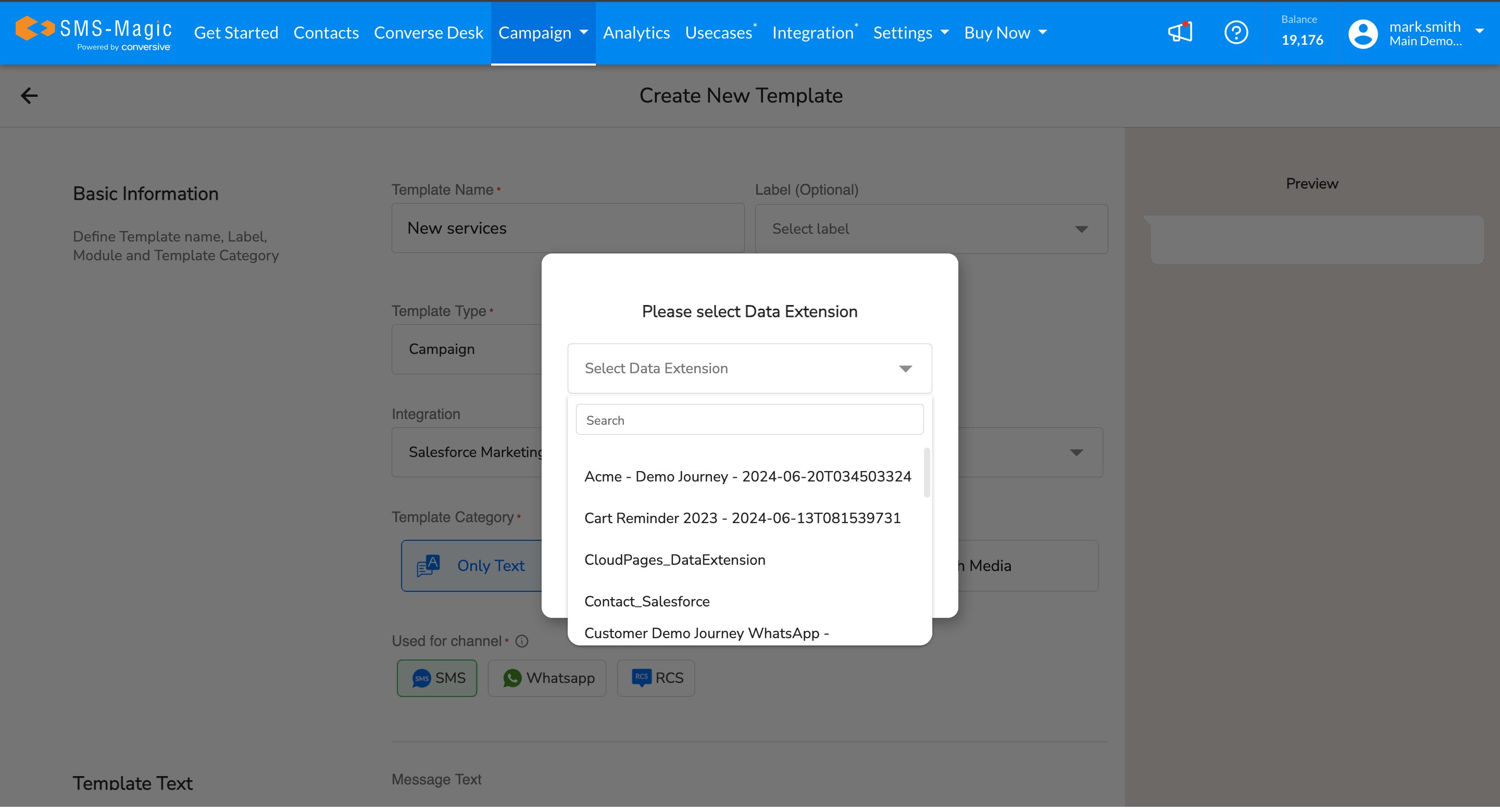
Step 3: Select the template category and channel.
Text and Media Template can be used all the channel like SMS,Whatapp, RCS
Rich tempaltes can be used in Whatsapp and RCS channels.
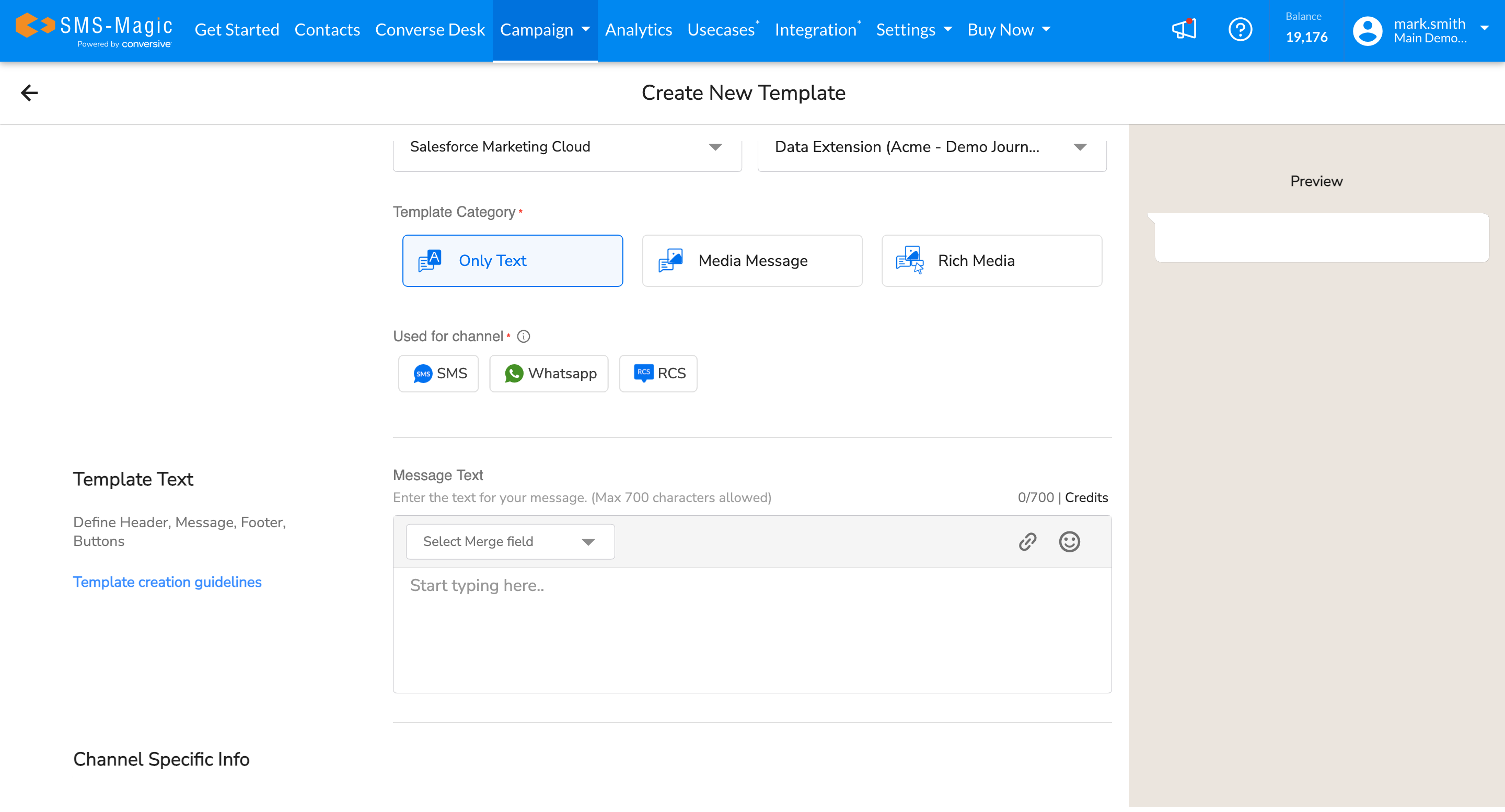
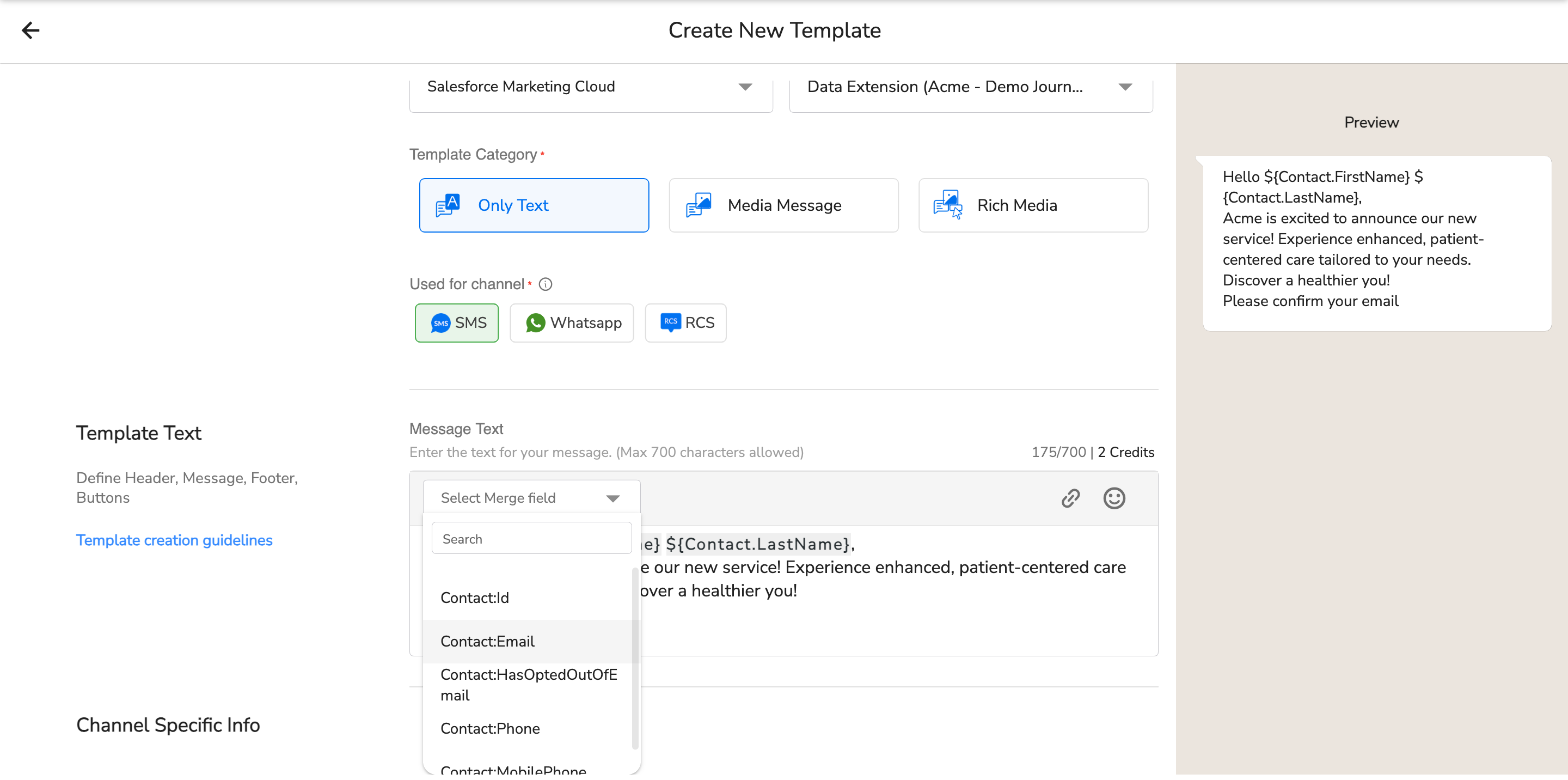
Step 4: Write the message text
You can use the merge fields from the selected in-message text and use them in sending a personalized message to your customer.
Step5: How to select the template in the SFMC
In the SFMC Journey Builder, after selecting the data source, drag and drop the sms-magic extension into the flow when you want to send this message.

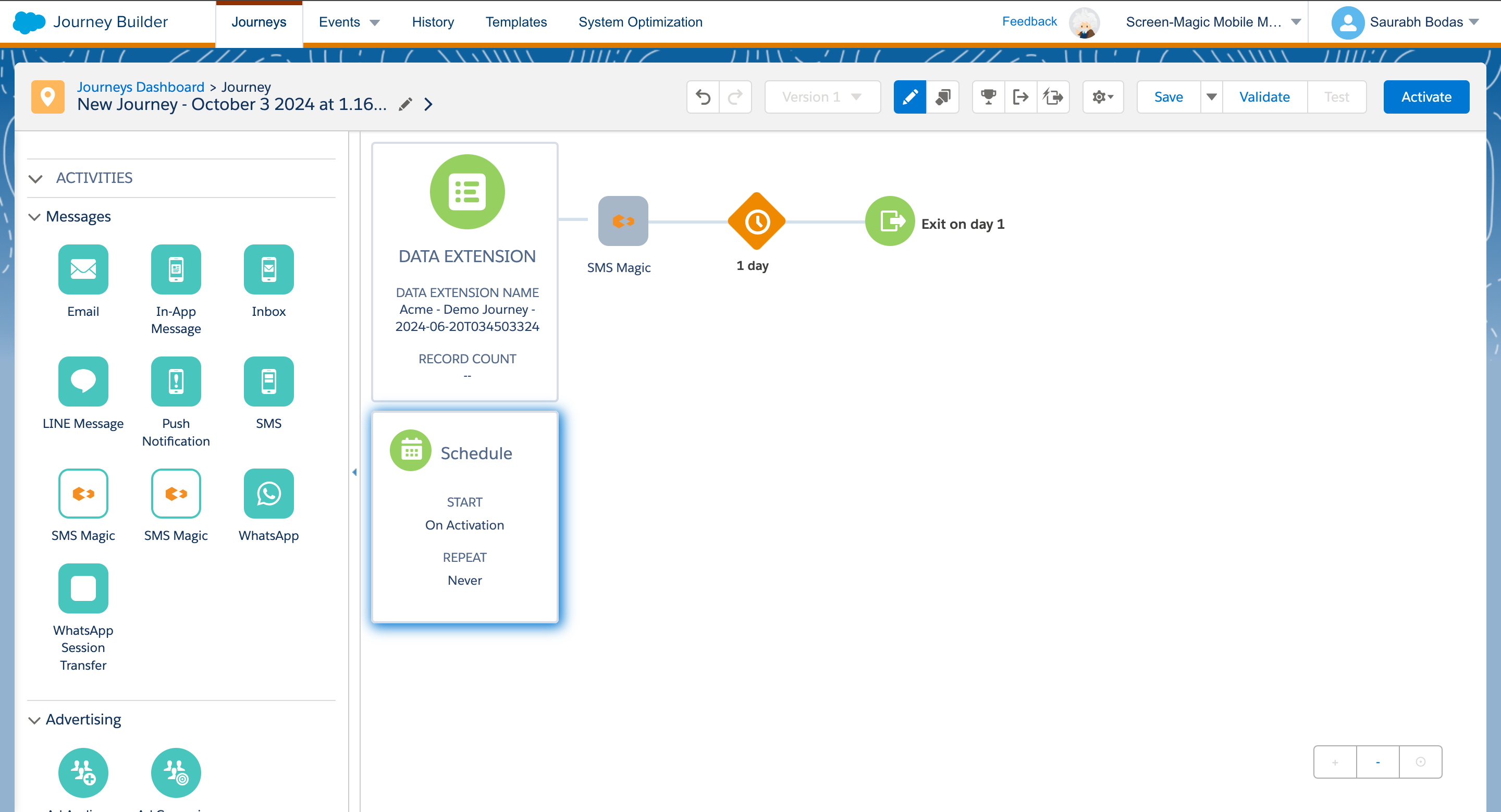
You can select created templates to send out the message using the message template, which uses the merge fields in the template to send personalized messages to your customers.