
For sending automated messages from ZOHO Campaign:
1. Firstly, you will need to configure an integration with SMS Magic. 2. Campaign to send out the messages.
Zoho Campaign Integration: (Refer Screenshots below)
Step 1: Goto settings (Bottom left corner) and click on “Apps” under Integration tab.

Step 2: Find SMS Magic and click on “Connect” and then click on “Continue”.
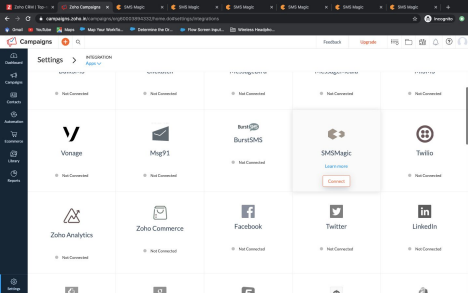

Step 3: Enter details under Authentication Details pop-up. “SMS Magic API key” and “Sender ID”. Click “Integrate” and the integration is done.

(You can fetch the SMS Magic API key from SMS Magic portal - screenshot attached below)
SMS Magic portal link: https://app.sms-magic.com/app/#/login

Zoho Campaign creation: (Refer Screenshots below)
To create a campaign below are the steps:-
Step 1: Find the “Campaigns” section from the left sidebar and select “SMS campaign”.
Step 2: Click Create Campaign and enter the details.
➔ SMS Gateway -> SMS Magic
➔ SMS Content -> SMS text
➔ Recipients -> Destination Numbers
➔ Fields -> Select Country field and phone field as Phone/Mobile as per use case and click Save.
Step 3: Click “Send for review” to let the Zoho team complete their review process.Click Refresh to view the status of your review process.
Note: The SMS will be reviewed based on the words or links used in the content.


Compose SMS content as per requirement. You can add merge fields as well. To add merge fields, press ctrl + M (cmd + M for Mac).

Select country and phone fields as per the use case.

Click on save. Once you click on save, you need to click on the “Send for review” button. The campaign will be sent for review to the Zoho compliance team. This is a mandatory process and may take upto 5 mins.

Once your campaign is reviewed, you can either choose to send out the campaign immediately or schedule it for later.

Zoho Campaign Workflow: (Refer Screenshots below)
Step 1: To create a workflow, click on the “Automation” section from the left sidebar and select “Workflow”.
Step 2: Click “Create Workflow” and select built-in template/type of the workflow as per requirement.
Step 3: Configure the workflow according to the use case and select “Add webhook” under “actions” section.
Step 4: Create a webhook and attach it to the workflow.

You can check the SMS History from SMS Magic portal.
SMS Magic portal link: https://app.sms-magic.com/app/#/login FAQs.
1) Is one to one messaging supported?
No. One to one messaging is not supported in zoho campaigns. 2) Is bulk messaging supported in Zoho Forms?
Yes, bulk messaging is supported in Zoho Campaigns. You can create the sms campaign to send messages to multiple recipients.
3) Can we create automation?
Yes, Automated messages can be sent with the help of workflow based on the criteria.
4) Is it possible to use multiple sender ids?
No, we cannot use multiple sender ids.
For more information on limitations and features supported, you can visit the URL below:
https://help.zoho.com/portal/en/kb/campaigns/user-guide/sms-campaigns/articles/s ms-campaigns#Integration_with_SMS_gateways
