
SMS Magic Integration:
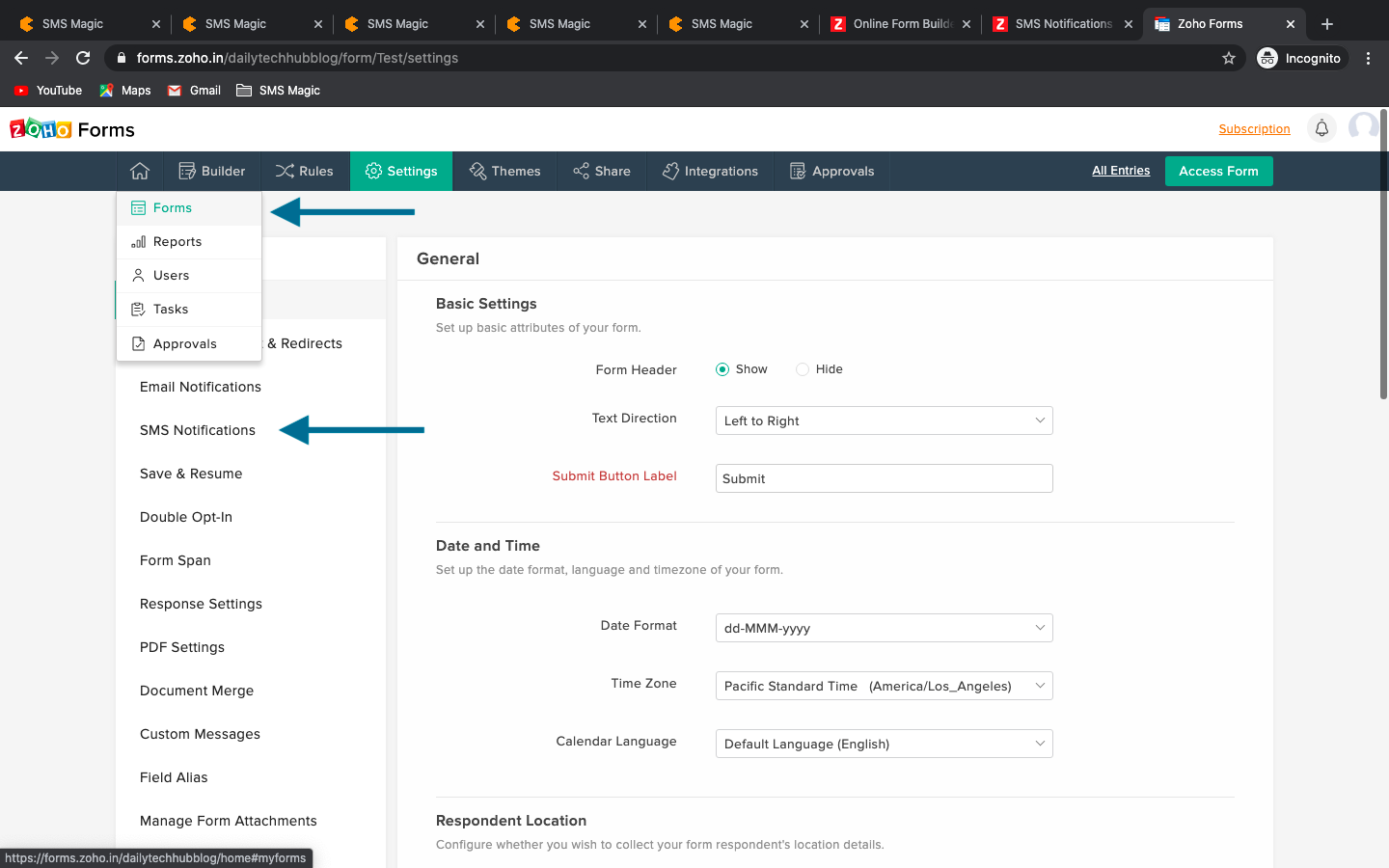
Go to Forms
Open any form and click on the Settings tab
Click ‘SMS Notification’ from the left sidebar
Select type of SMS notification as per requirement (Either on new record creation or existing record updation).
Click on ‘Configure New’.

Select ‘SMS-Magic’ under Service.

Enter a Connection Name
Enter your SMS Magic API key and Sender ID.
Click Create.
Setting up an SMS Template
Once you've configured an SMS gateway connection, you can follow these steps to create your SMS template:
In your form builder, click Settings, and then SMS Notifications.
Choose whether to send an SMS notification when a record is Added or Updated.
If you have not configured an SMS Gateway connection yet, click Configure Now and create a new connection.

Once the gateway connection is configured, proceed to create a template.
Choose a pre-configured connection as SMS Magic.
Enter recipient phone numbers with country code. You can also include a phone field from your form by clicking the icon to send the notification to the number filled by your client.
In the Message section, type your text message. To include values from a form submission, click the icon and choose the form fields.

Click Save.
