
SMS Magic is supported on
Enterprise, Unlimited, Developer, Performance, Professional edition
In case you want to trigger the Apex Code, Enterprise and Unlimited Edition is mandatory. For professional Edition, you will need Rest API license
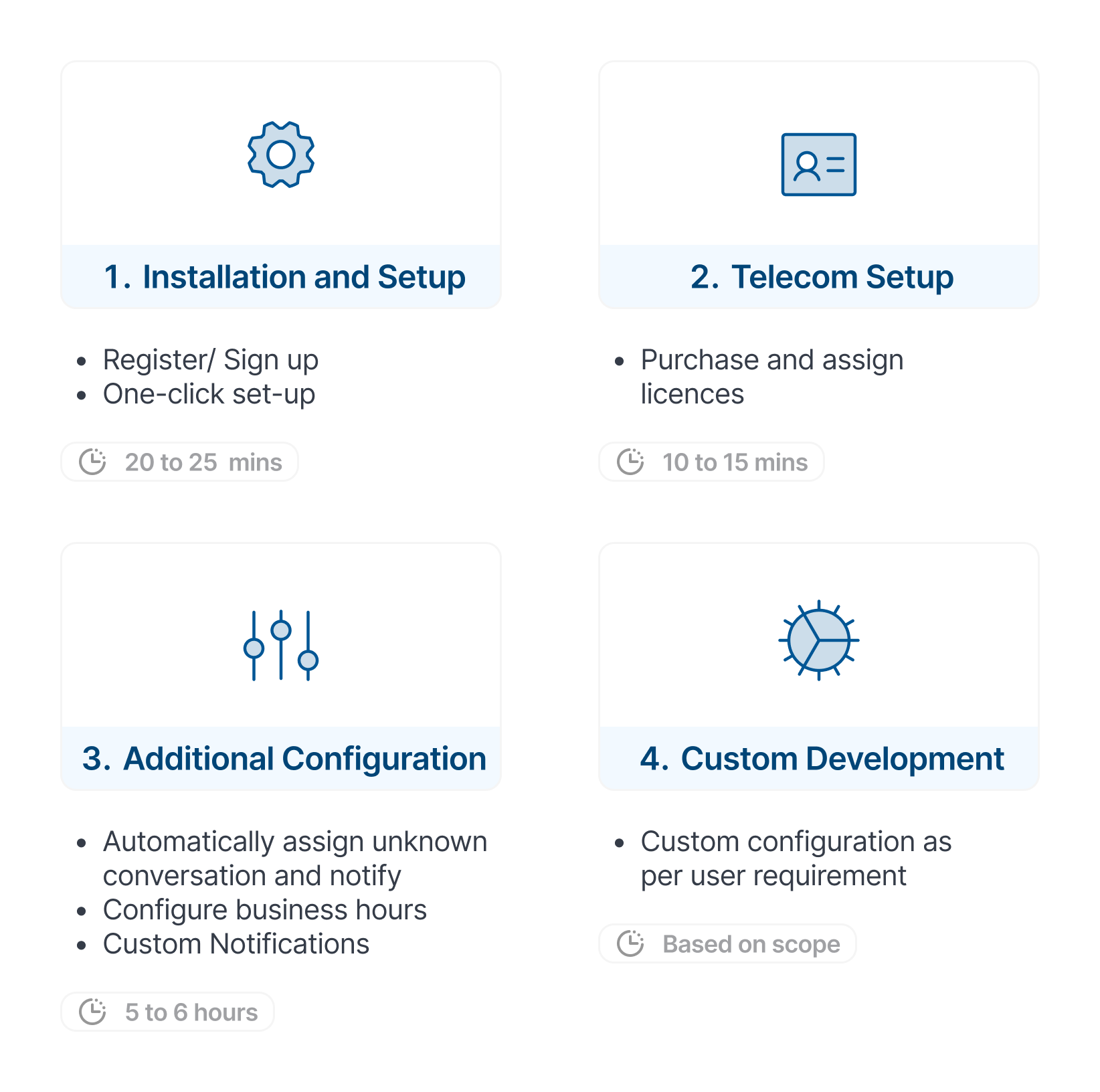
SMS Magic onboarding process consists of few steps for Salesforce :-
Fill up the Free trial account form
After submitting form, give access to SMS Magic for your Salesforce by signing into your salesforce account where you want package setup to be enabled.
Verify your emailId
Initiate the installation & setup process
Additional business useacases from workspace Explore here
Purchase sms magic licenses Buy SMS Magic
Start using SMS-Magic
If you are new to SMS Magic, you can use this form to get started for Sandbox or developer organanization. Once you experience feature on your org, you can link your production orgs from workspace section.
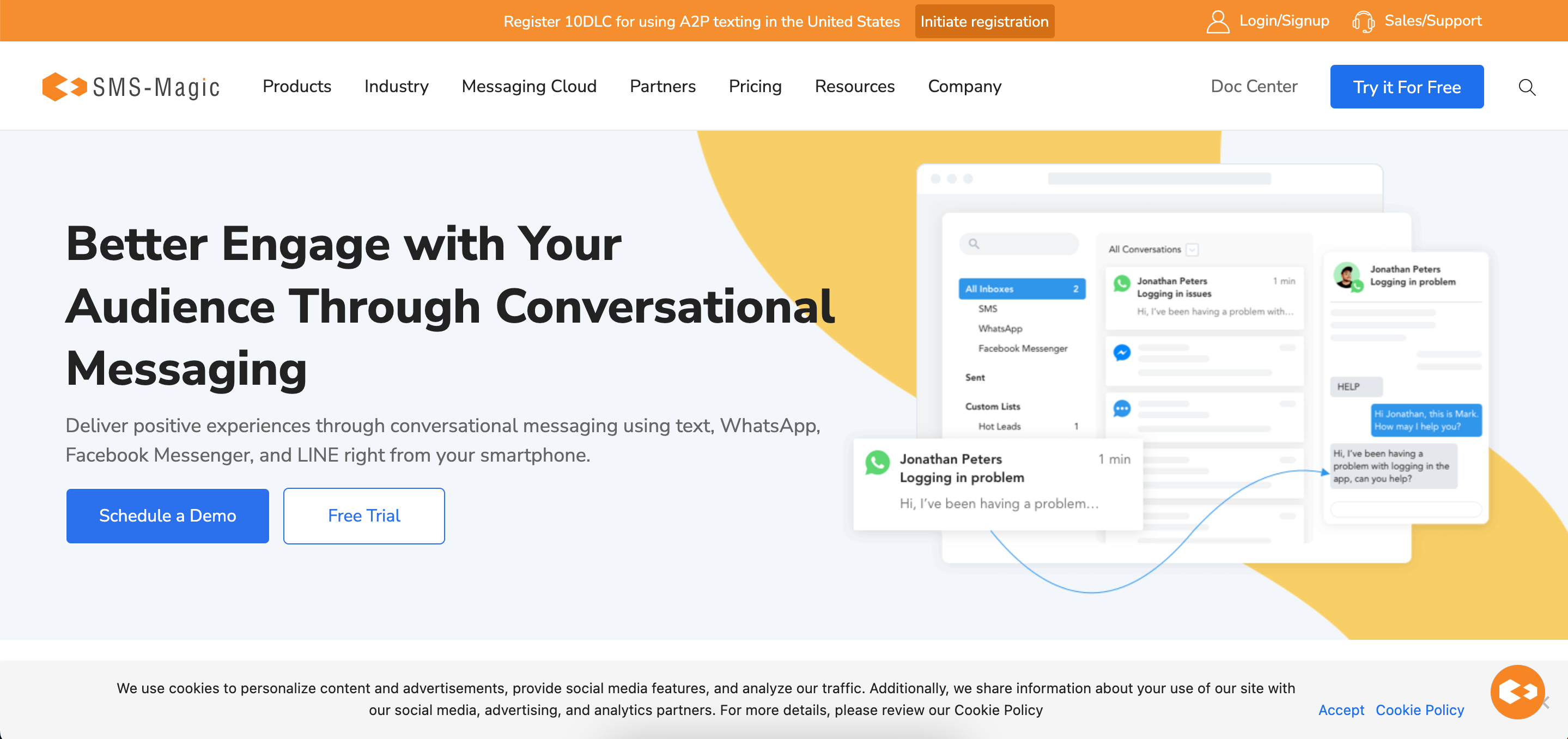
Step 1: Visit the SMS Magic website
Click on 'Free Trial'
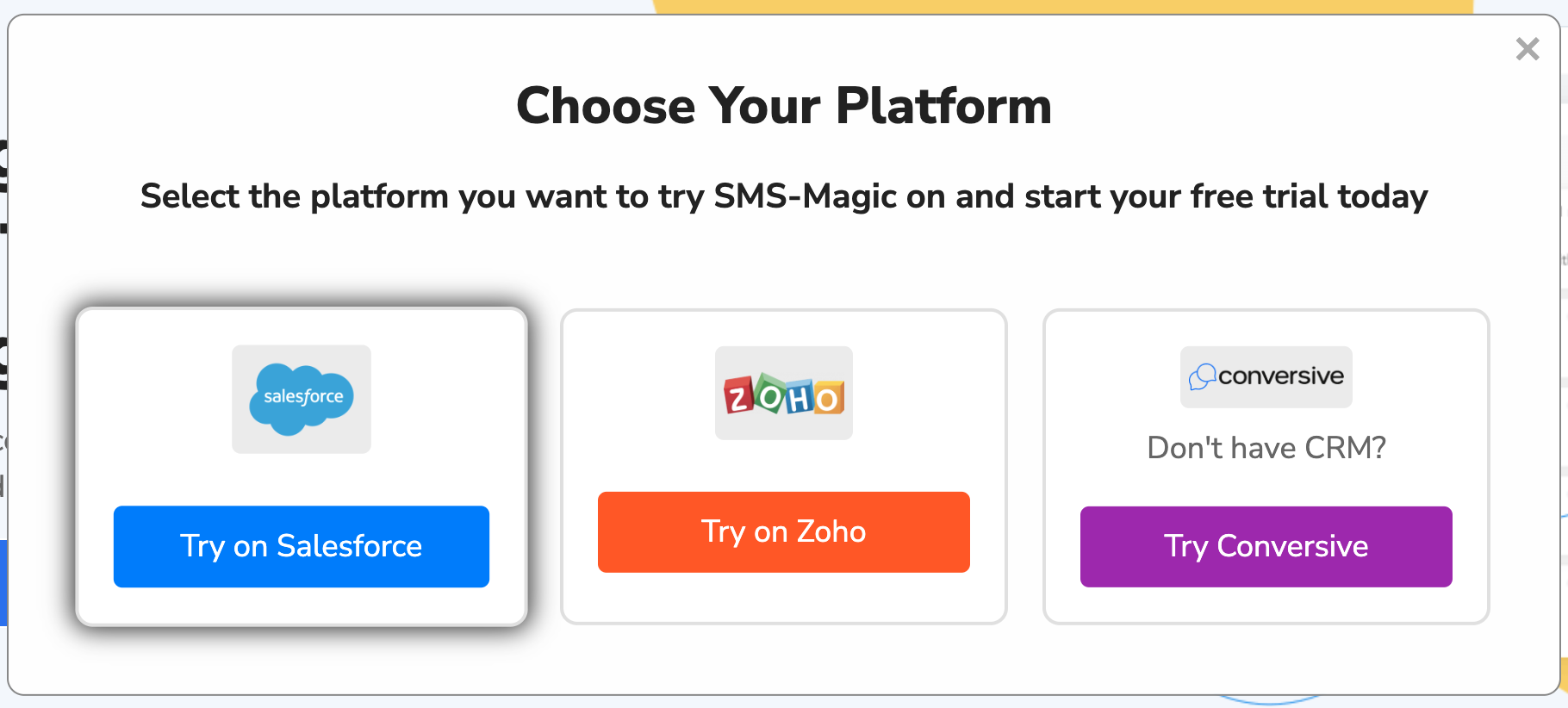
Click on 'Try on Salesforce'
Step 2: Signup using Salesforce credentials
You will be redirected to the below screen, where you will have to select the data center where you want to create your account and keep your data.
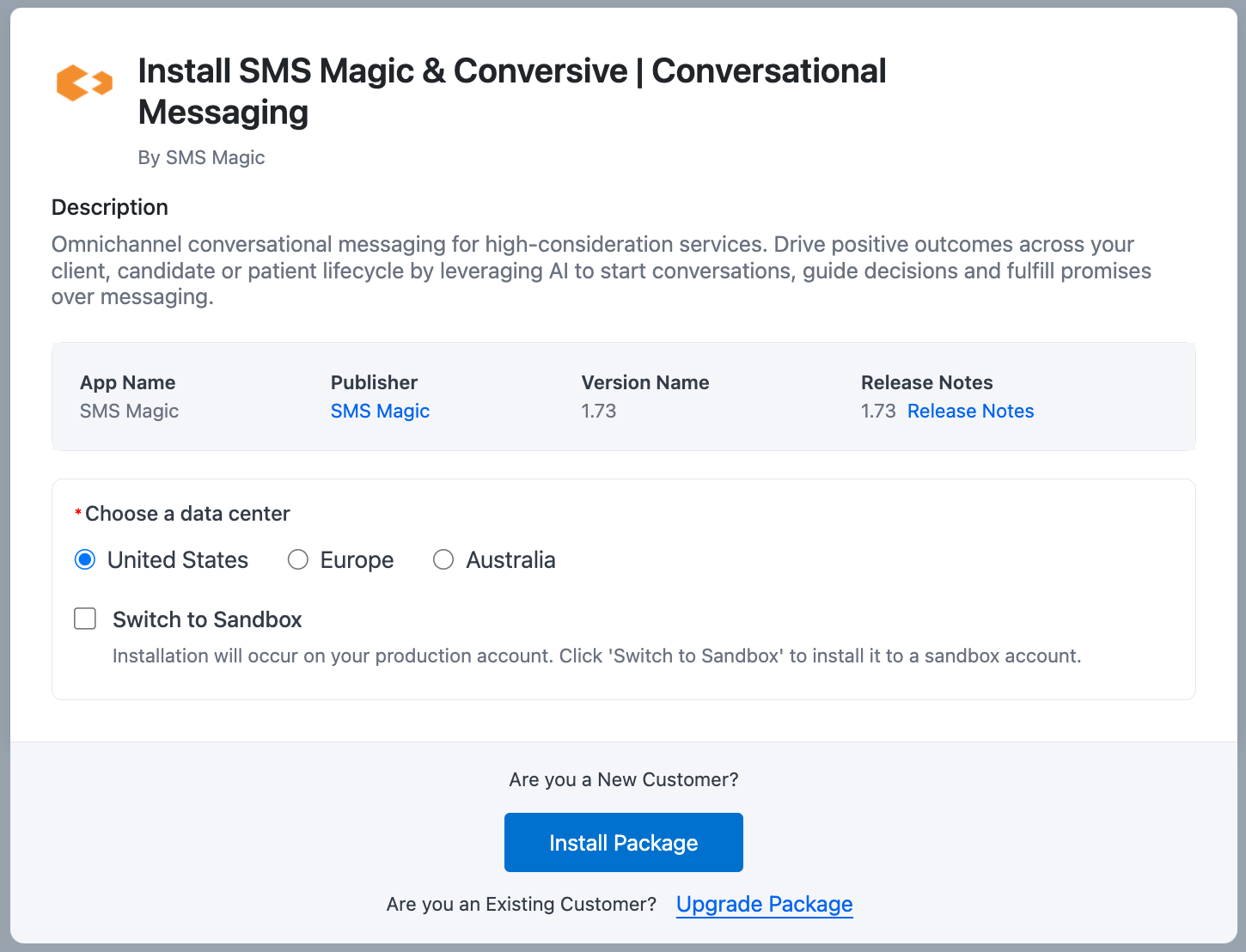
After that, click Install Package to proceed with the Installation of the SMS magic package in your salesforce org.
Select the Salesforce environment (Production/Sandbox).
If switching to Sandbox, check the Sandbox option.

If an account already exists in a different data center, an error will appear, prompting users to redirect.
Click Allow Access to proceed with account creation.
Step 3: Automated Account Creation & Installation
The system retrieves Salesforce Org ID and Email.
Verifies System Administrator permissions.
A new SaaS account is created automatically.
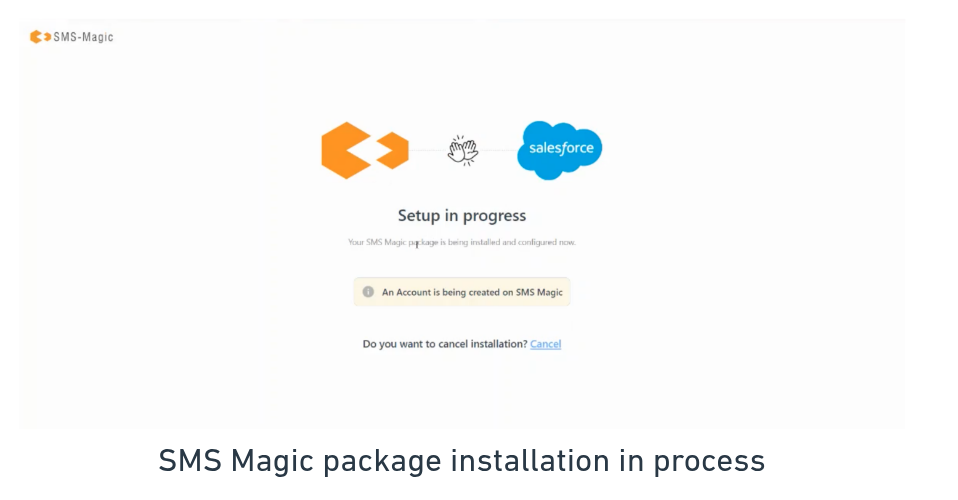
Users are redirected to their SMS Magic workspace.
SMS Magic package installation begins automatically.
Users can cancel the installation from here. (Note: The SMS Magic account will be created, but the installation of SMS Magic in Salesforce will be canceled.)
Step 4: Workspace Access & Installation
Users are auto-logged in via Salesforce SSO (No additional login required).
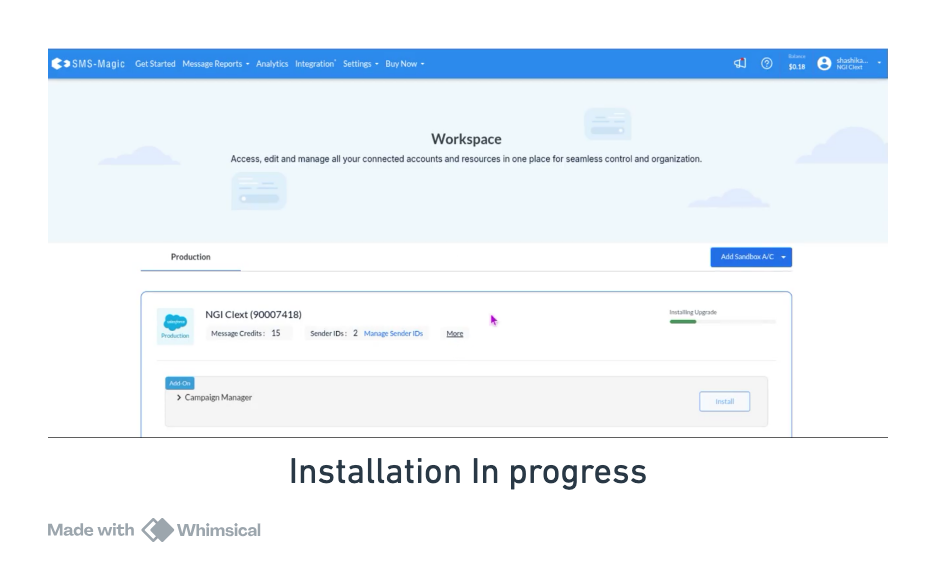
If Users cancel the installation, they can retry later from the workspace.
Verification email is skipped; users receive 15 message credits and 1 number credit upon account creation.
Step 5: Navigate to Installed App
Users can navigate to the installed app in Salesforce Org.
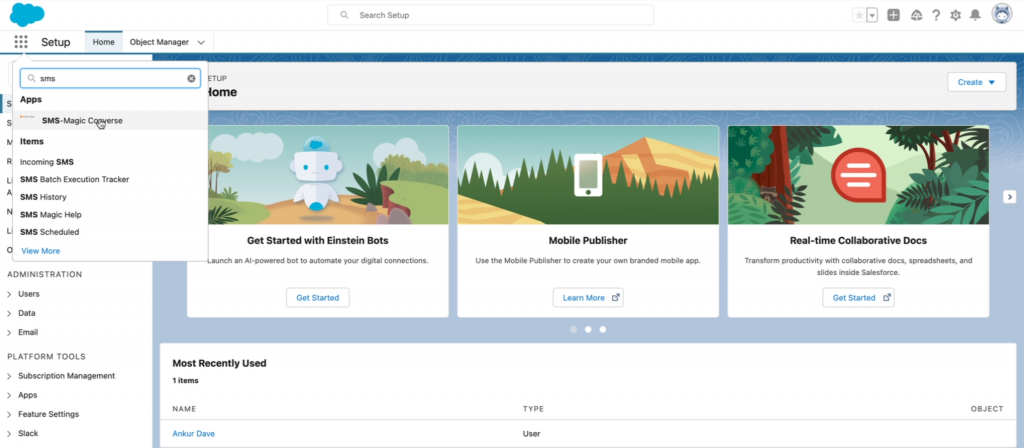
Go to 'SMS Magic Converse'
Step 6: Confirm your email Address
Also, meanwhile, you can check your email inbox and confirm your account so that you can get started using the SMS Magic Converse package. The account confirmation step will not pause the installation and configuration process.
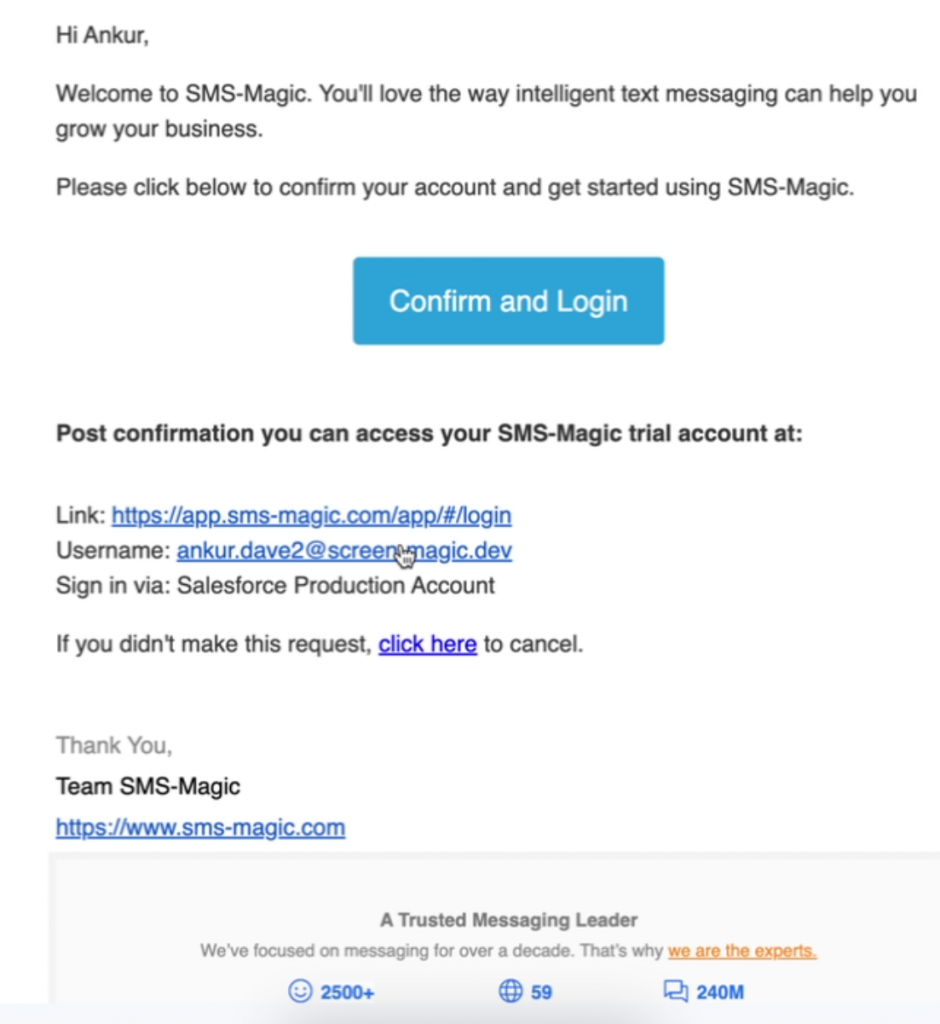
Click on ‘Confirm and Login’ to confirm the account. You will have to confirm your account so as to receive the default number and credits.

Once you confirm your account, you can proceed to login
You can go back to the page to check the status of your package installation and configuration. As you can see, the package is installed and configured successfully:
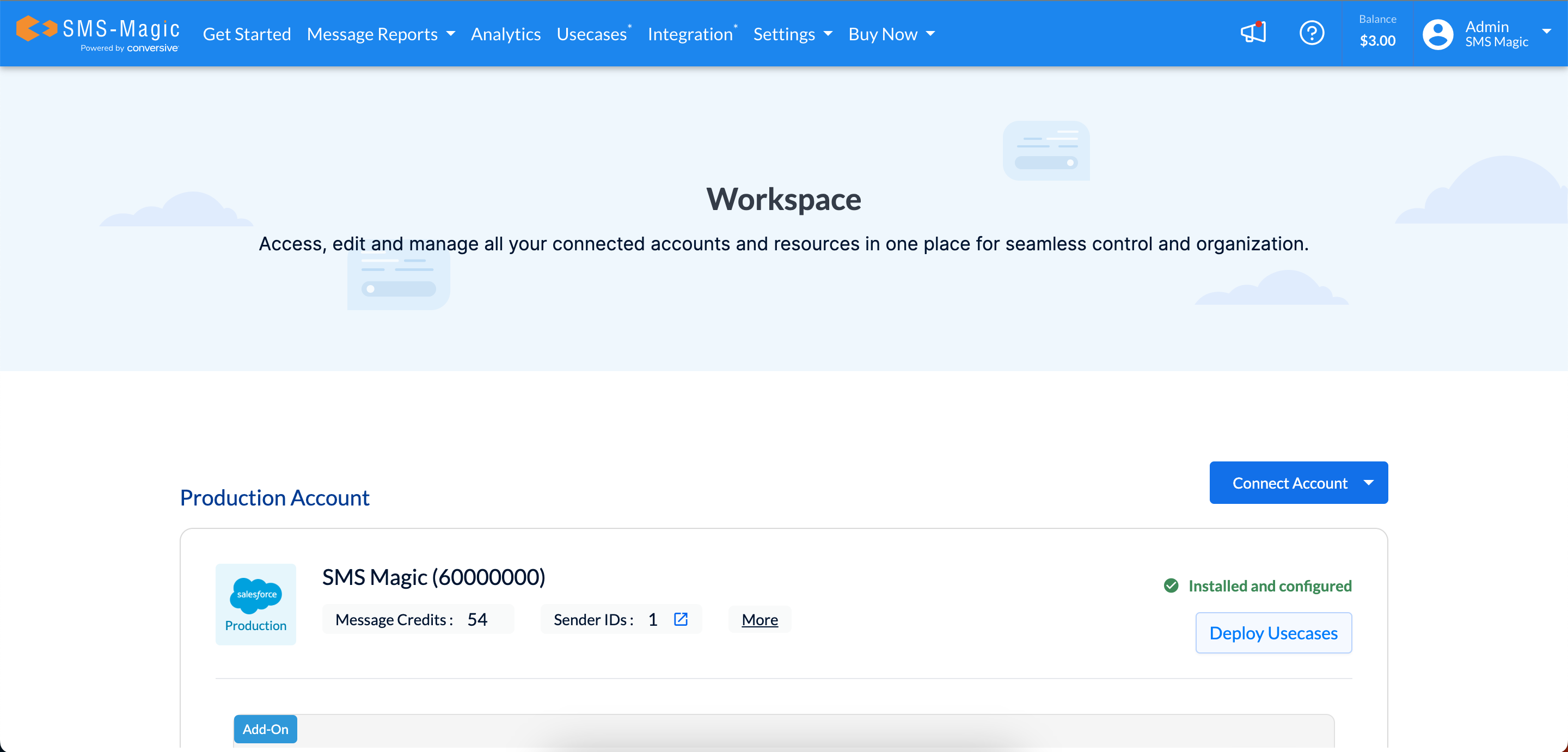
Step 7: Log in to Salesforce & Send your first message
you are already logged in, click on 'GoTo Salesforce' to access your org. If you are logged out, login to your Salesforce account:
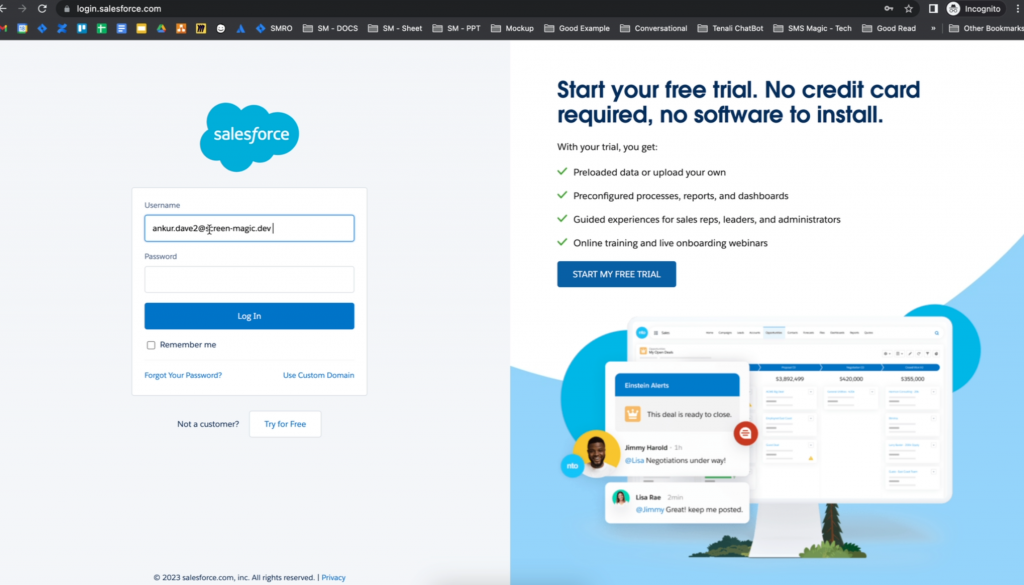
Once you log in, you will be redirected to the following home page:
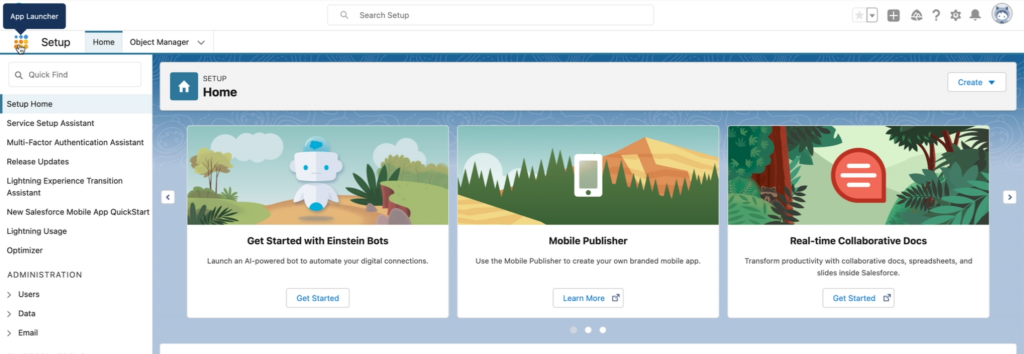
Search for SMS Magic Converse App:
The following home page of the converse app will appear:
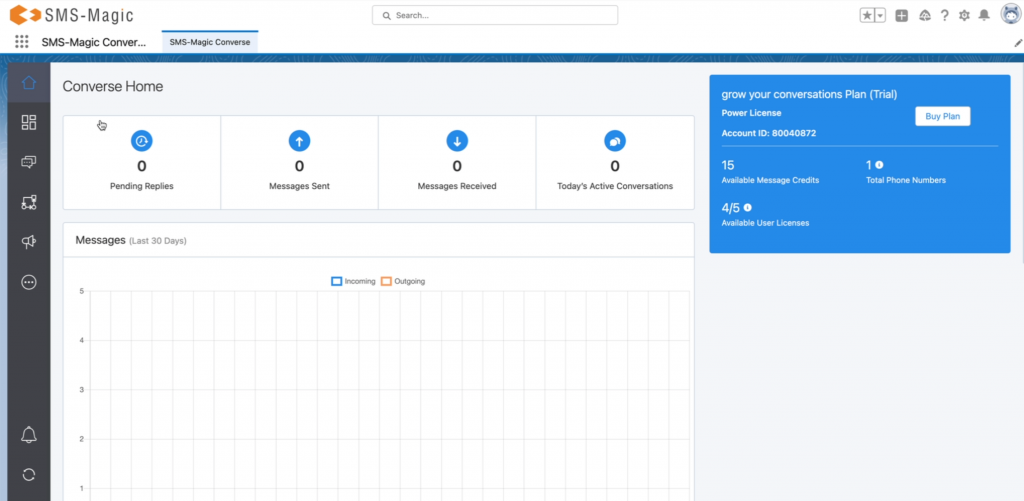
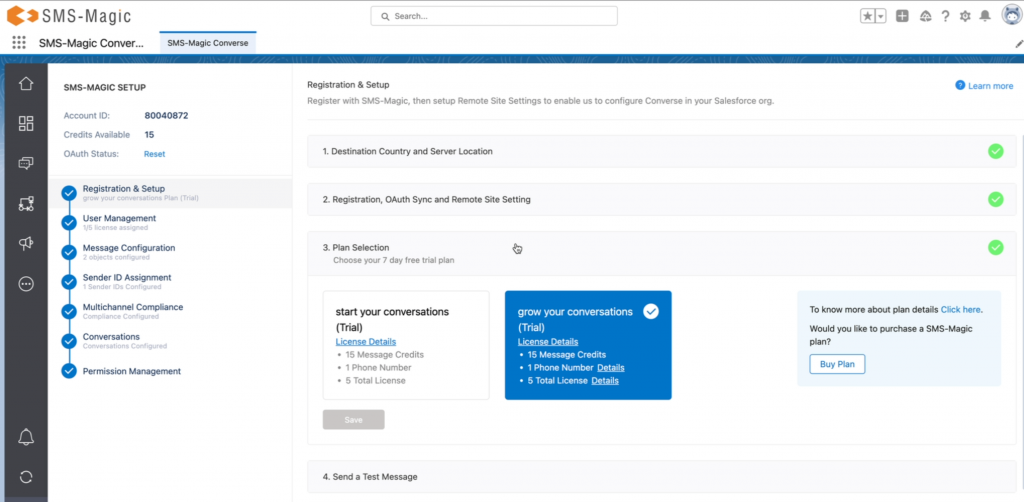
Here, you can see that you have received the default 1 phone number, 15 messaging credits, and the user licenses
You can go to the converse settings and see that all required settings are complete and also check the licenses assigned to your user:
Common errors (and their resolution) during the installation and configuration process
Category Type | Error Code | Why Error Occurred? | Resolution |
Installation | Authorization_Error | Authorization error occurs in case of OAuth failure. | If authorization error occurs, users need to re-login to the customer portal via Salesforce so that OAuth details get updated |
Installation | Salesforce_Package_Install_Error | This error occurs when the logged-in user doesn't have the required license to install the package. | Users need to connect with the admin |
Installation | Unknown | This error occurs in case of an exception or an application error | Users need to connect with the support team at care@sms-magic.com for further assistance |
Configuration | Authorization_Error | Authorization error occurs in case of OAuth failure. | For authorization failure, users need to re-login to the customer portal via Salesforce so that OAuth details get updated |
Configuration | Unknown | This error occurs in case of an exception or an application error | Users need to connect with the support team at care@sms-magic.com for further assistance |
Configuration | Salesforce Domain & Lightning Setup missing | Domain Registration is mandatory for Lightning Experience, while it's not mandatory for Classic Users | Register a My Domain Subdomain To access SMS Magic on Lightning, you must have My Domain enabled. Register a subdomain with the My Domain wizard and then deploy it. Enable Lightning Experience To use SMS Magic on Lightning, Lightning Experience must be enabled in your org. |
Google Chrome or Firefox is recommended
