
1. Log in to the SMS-Magic Converse application
2. Click on the Converse Templates tab. The Converse Templates page appears.
3. Select the checkbox next to the template you want to edit. The template will be selected.
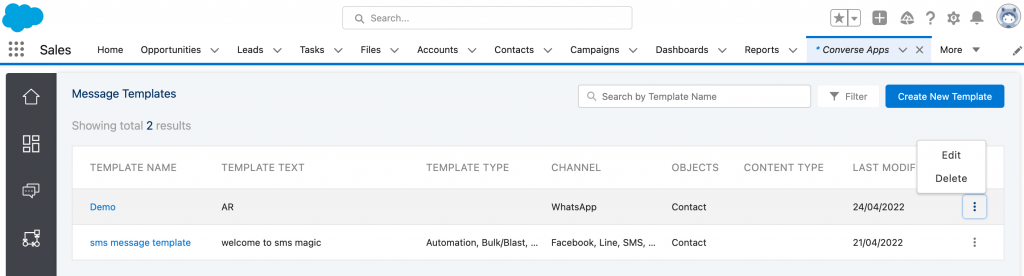
4. Click on ‘Edit’ the following page will appear:

5. Click on 'Save' once the template is modified
6. Users will be notified with a message if a template is already in use and the following page will appear:

7. Click on ‘Cancel’ if you don’t wish to edit the template
8. Click on ‘Proceed’ if you wish to edit the template
9. Edit the details as required. The following table provides details on individual fields
Field | Description |
Template Name | Type an identifier for a Template. |
Primary Object | In the drop-down list, select the primary object that you want to associate with the template. Create the object in Message Object Configuration (MOC) prior to associating it with the template. Contact your system admin for creating objects. |
Description | Type a small summary to describe the template |
Template Text | Type the default template text. Select the fields that you want to use as merge fields within the template text. |
Use for Channels | Select and use templates for sending messages on single or multiple channels. Get in touch with our support team care@sms-magic.com for procuring channel-specific sender IDs before using templates on channels other than SMS. |
Select Content-Type | In the drop-down list, select the content type you want to tag to the template. If you are using the old compliance feature you need not select values in this field. |
Is it a registered WhatsApp template? | Select this checkbox while adding the registered WhatsApp Template. This use-case specific approved template can be sent to recipients over WhatsApp outside of the 24 hrs window when you have consent. |
WhatsApp Template Name | This name should match with the registered template name |
Locale | Select a locale value in which your template is registered with WhatsApp |
Map this template with Facebook Message Tag | Select this checkbox when you want to map the template with Facebook Message Tag. This use case-specific templates can be sent to recipients over facebook outside of the 24 hrs window when you have consent. |
Select Message Tag | Select a message tag for the template having a valid use case. The use of tags for invalid use case content may result in restrictions on your page’s ability to send messages. |
5. Click on the ‘Save’ button. The template gets modified.
